Skip to content



If you’re switching to Apple devices or simply prefer working on macOS, QuickBooks Desktop for Mac gives you the power to manage finances locally without depending on the internet. Many businesses still choose this option because it delivers speed, privacy, and better control of sensitive data. While cloud tools are growing, the latest version of QuickBooks for Mac remains relevant, especially for users who want something familiar, efficient, and built to work seamlessly with Apple Mail, Microsoft Excel, and Microsoft Outlook for sending invoices, sharing reports, and exporting financial data.
Even with the evolving software, QuickBooks Desktop hasn’t faded. Intuit reported $726 million in revenue in Q1 of FY’24 from desktop products alone, proof that companies still trust the stability and workflow they’ve used for years. It’s a strong option for small and mid-sized businesses, independent professionals, wholesalers, and anyone who prefers QuickBooks software installed directly on their device rather than relying fully on cloud systems.
This guide will walk you through setting up QuickBooks Desktop for Mac, installing it, determining your Mac’s minimum requirements, importing data if you’re moving from a previous version of QuickBooks Desktop, and what to expect during your first company file setup. If you’re installing the software yourself or upgrading to the right version for your business, you’ll find every step explained clearly from start to finish.
Also read: QuickBooks Desktop Discontinued – Everything You Need to Know
Considerations in setting up QuickBooks Desktop for Mac
Before downloading QuickBooks, make sure your Mac can run it smoothly. The software is powerful, but like any desktop application, it performs best when the system meets the right requirements. A quick pre-check saves time, prevents installation errors, and ensures your data runs without glitches.
QuickBooks Desktop for Mac supports macOS 10.14 (Mojave) and above. If you’re using an older operating system, updating macOS first will save you from installation roadblocks later.
You’ll also need:
- An Intel Core 2 Duo processor (or later)
- At least 2GB RAM (though 4GB is much smoother if you handle large files)
- 250MB of available disk space
- Your license and product number are handy because you’ll need them during activation
Most newer MacBooks and iMacs meet these specs easily, but older models may struggle to meet them. If your device is just below the minimum requirements, expect slower performance when running reports, importing large lists, or handling multi-year data.
Think of this step like clearing desk space before you start working. Once your system checks out, the rest of the setup becomes straightforward.
How to install QuickBooks on Mac
Installing QuickBooks Desktop for Mac is easier than it seems, but doing it correctly ensures smooth performance and prevents issues like data file corruption later on. Whether you have a digital copy from the Intuit website or a physical copy with a CD installer, follow these steps carefully.
Note on availability: As of 2026, Intuit has not released a new QuickBooks Desktop for Mac version beyond 2024. Some regions may no longer sell new licenses for standard Mac desktop editions, though existing users still receive updates and support. Mac users who need full desktop functionality may also consider QuickBooks Desktop Enterprise for Mac or QuickBooks Online. Either way, the QuickBooks Desktop 2024 discontinuation sets out how long the 2024 releases stay supported.
Step 1: Download QuickBooks Desktop for Mac 2024
- Open the official QuickBooks website and go to the products section.
- Select QuickBooks Desktop for Mac 2024 and click Download.
- Save the installer file to a folder you can easily access, like your default directory.
Tip: Using a stable internet connection helps prevent corrupted downloads or incomplete files.
Step 2: Run the installer
- Navigate to your Downloads folder and double-click the installer icon.
- The installer will launch automatically. If your Mac prompts a security warning, click Open to continue.
Step 3: Follow on-screen instructions
- Click Continue to proceed with the installation.
- Read the license agreement carefully, then click Agree to confirm.
- Choose the destination folder where QuickBooks will be installed, and press Continue.
Step 4: Complete the installation
- Click Install to start the setup process.
- Enter your admin password when prompted; this ensures QuickBooks can make necessary system changes.
- When the installation is finished, click Close to exit the installer.
Step 5: Activate QuickBooks
- Launch QuickBooks Desktop from the Applications folder.
- Enter your license number and product information to activate the software. This step is crucial for accessing all features and getting updates from the QuickBooks support team.
Once installed, QuickBooks Desktop will integrate smoothly with apps like Apple Mail, Microsoft Excel, and Microsoft Outlook, letting you export reports, send invoices, and manage data efficiently.
Also read: 1099 Integration and Filing for QuickBooks Desktop and Online
Configuring initial settings in QuickBooks Desktop for Mac
After installing QuickBooks Desktop for Mac, setting up your initial preferences ensures your company files run smoothly and are tailored to your business needs. Follow these steps carefully to avoid future issues like data file corruption or reporting errors.
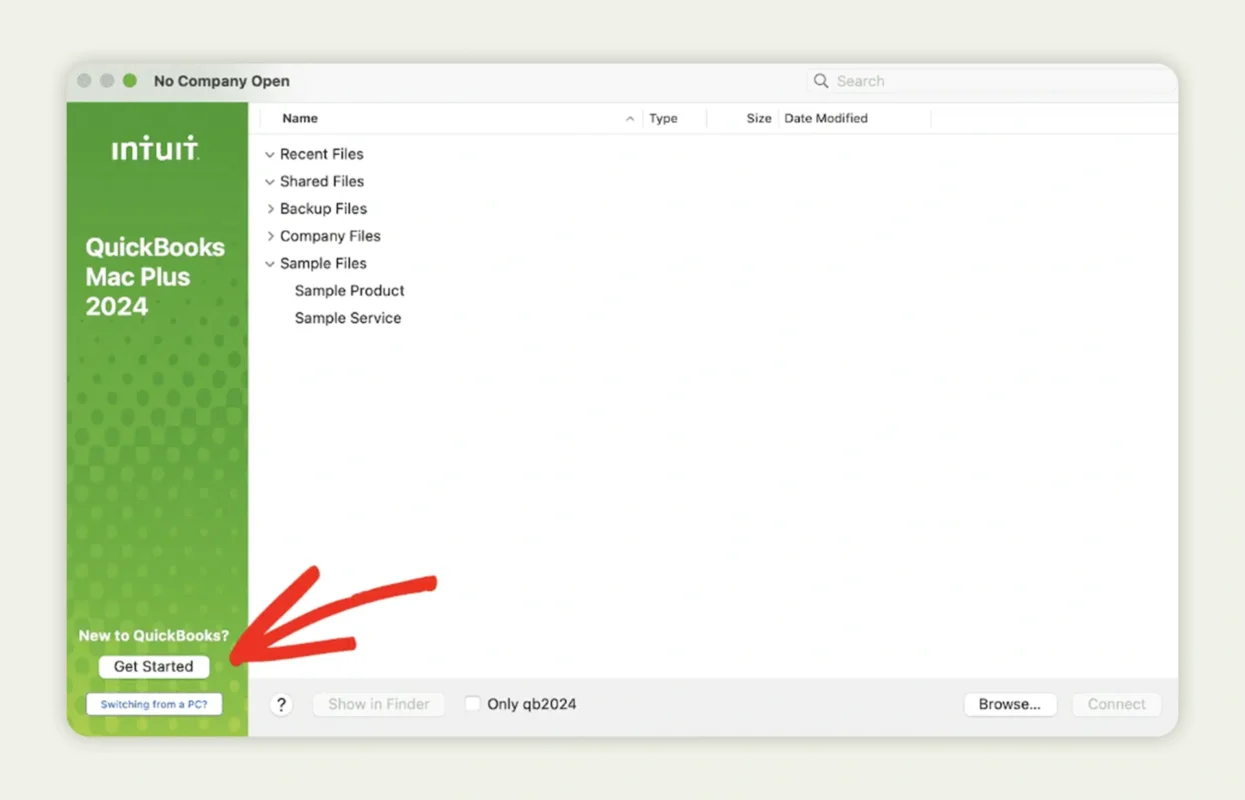
Step 1: Open QuickBooks Desktop
- Launch QuickBooks Desktop by clicking the QuickBooks icon in your Applications folder.
- If prompted, log in using your Intuit account credentials.
Step 2: Set up your company profile
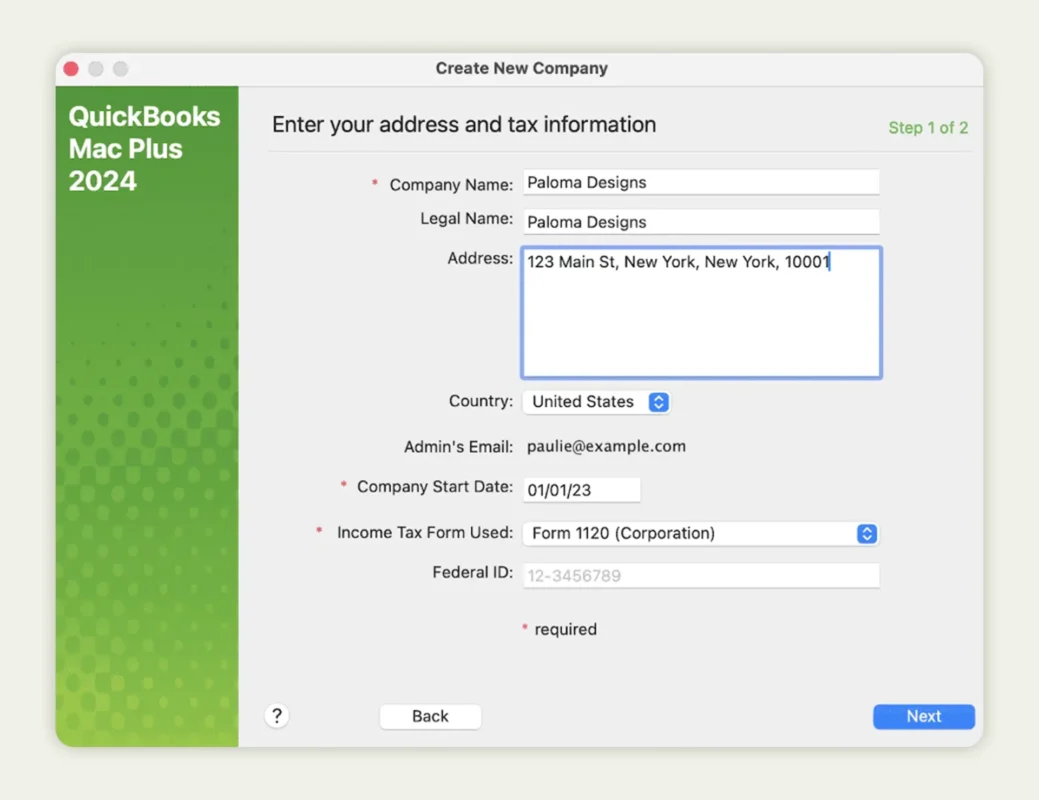
- On the welcome screen, click Get Started.
- Select Create a New Company to generate a company file for your business.
- Enter your company’s name, address, and tax information. This information will be used in all reports and invoices.
Tip: If you are migrating from a previous version of QuickBooks Desktop, make sure your company file is backed up before creating a new one.
Step 3: Choose industry and company type
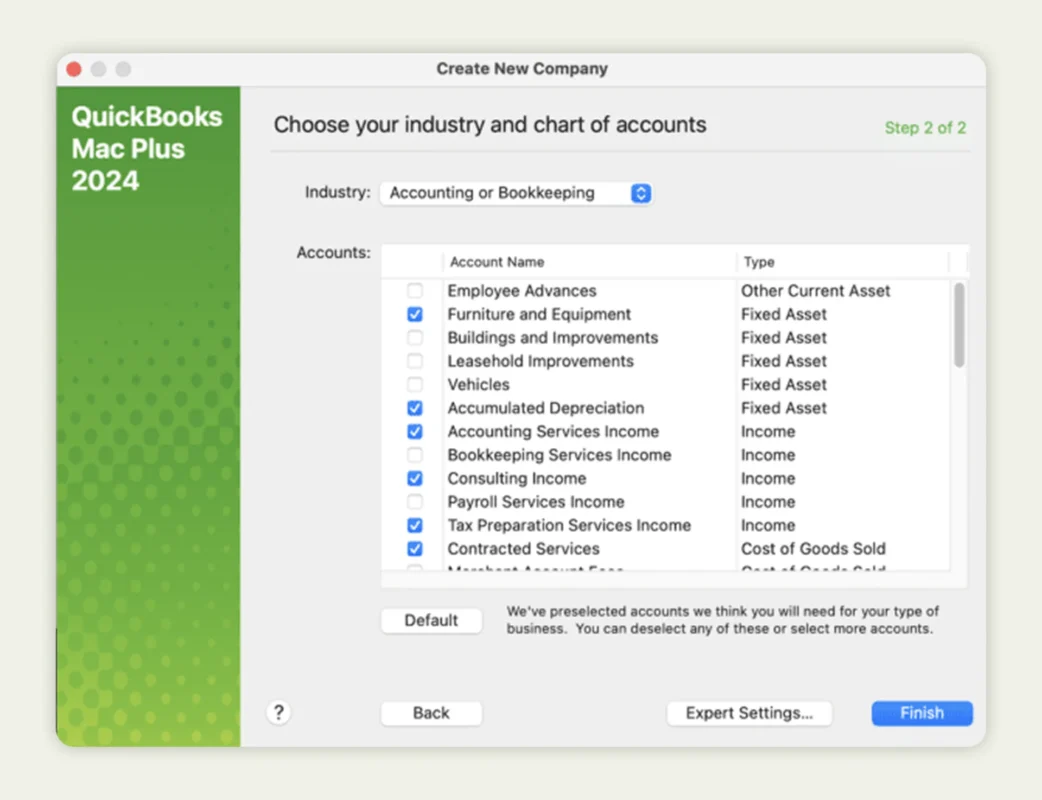
- After entering basic company details, click Next.
- Fill in your industry, assets, income sources, and services.
- Unsure about some options? QuickBooks provides default selections that work for most businesses.
Step 4: Set fiscal year and financial preferences
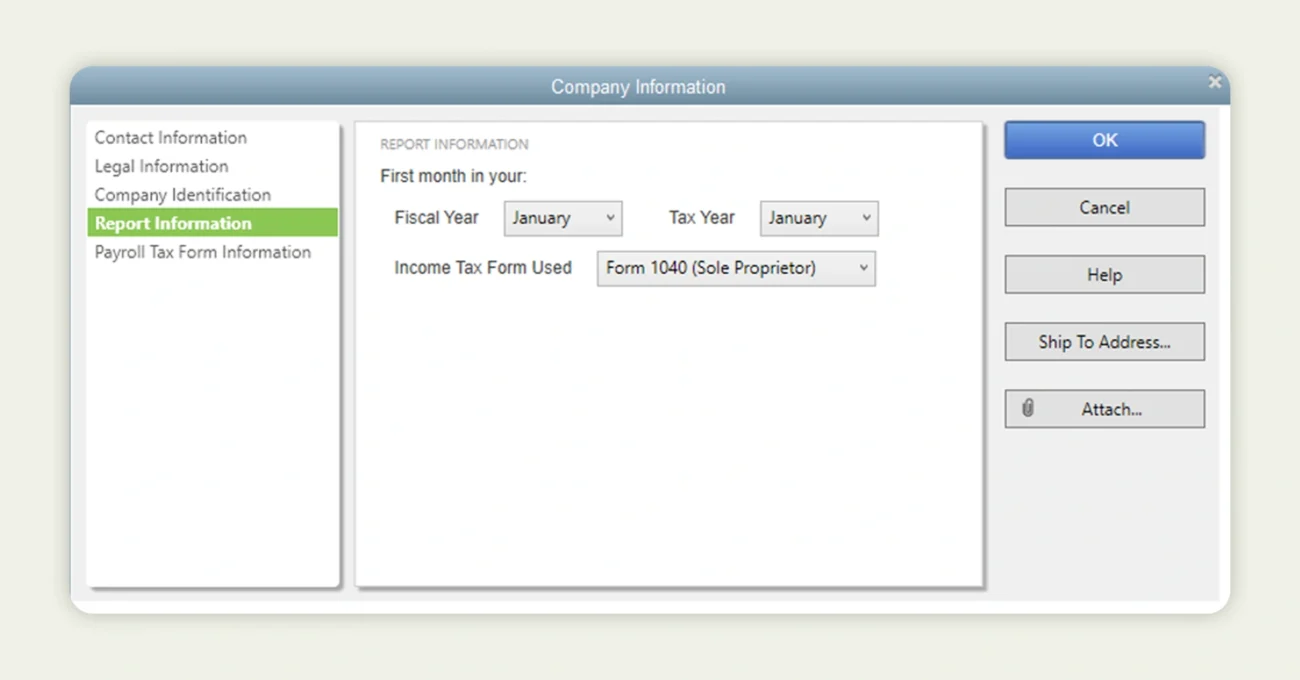
- Select your fiscal year start month according to your accounting cycle.
- Choose your company’s accounting method and default currency.
- Click Finish to save your financial preferences.
These settings help QuickBooks generate accurate reports and balance sheets from day one.
Step 5: Customize QuickBooks for your business needs
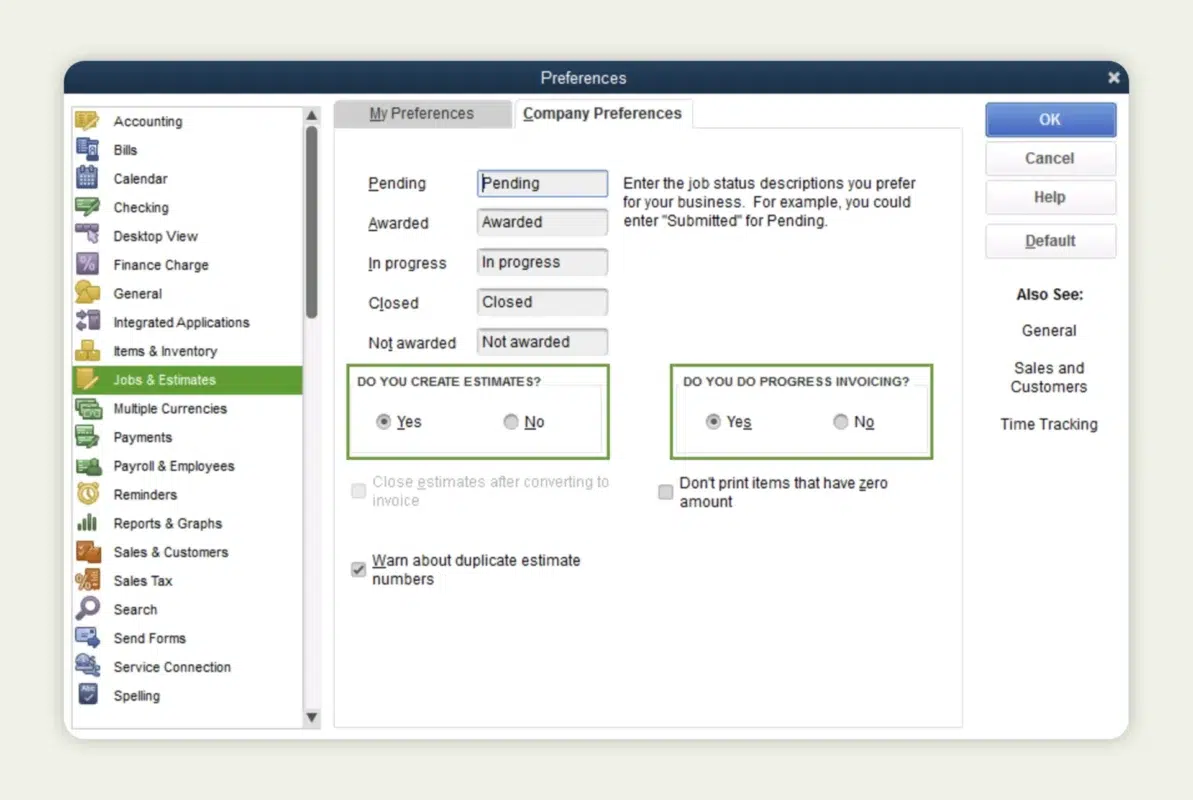
- Open the Preferences menu from the QuickBooks toolbar.
- Configure options like sales tax, payroll, invoices, reminders, and notifications.
- Take your time thorough setup, now saves time later.
Once these steps are completed, your QuickBooks Desktop for Mac is ready for use. The software will now work seamlessly with apps like Microsoft Excel, Microsoft Outlook, and Apple Mail, helping you export report data, manage invoices, and maintain accurate financial records.
Pro tip: Regularly review your settings to ensure they match your evolving business needs. If you encounter any issues, the QuickBooks support team is available to help with installation, setup, or troubleshooting.
How to update the previous version of QuickBooks Desktop for Mac
If you’re upgrading from a previous version of QuickBooks Desktop, updating your company file correctly is crucial to avoid data loss or corruption. Here’s how to do it safely:
Step 1: Back up your existing company file
- Open your current version of QuickBooks Desktop.
- Go to File > Backup Company > Create Local Backup.
- Save the backup to an external drive or secure folder.
Tip: Regular backups protect your financial data and ensure you can restore files if something goes wrong during the update.
Step 2: Open your company file in the latest version
- Launch the latest version of QuickBooks Desktop for Mac (2025 edition if available).
- Navigate to File > Open Company, then locate the company file from your previous version.
Step 3: Follow the update prompts
- QuickBooks will detect that the file is from an older version and prompt you to update it.
- Click OK to start the update.
- Wait a few minutes; the process depends on the size of your company file.
Note: Ensure your Mac meets the minimum requirements to avoid slow performance or errors during the update.
Step 4: Verify the updated file
- Once the update completes, review your balance sheets, profit and loss statements, and transactions to confirm accuracy.
- Check that all historical data has been properly transferred.
Tip: If you notice missing or incorrect data, restore from the backup and retry the update or contact QuickBooks support for guidance.
Updating your company file ensures you have the latest features, improved security, and compatibility with the newest tools in QuickBooks Desktop for Mac. Doing this carefully also prevents issues like data file corruption and keeps your accounting workflow seamless.
Setting up multi-user mode
If your business has multiple team members who need access to financial data, setting up multi-user mode allows more than one person to work in QuickBooks Desktop simultaneously. Here’s how to do it safely and efficiently.
Step 1: Check network requirements
- Connect all Mac devices to the same local network (wired or wireless).
- On the Mac, where the main company file is stored, go to System Preferences > Sharing and enable File Sharing.
- Ensure shared users have read and write access to the folder containing the QuickBooks company file.
Tip: A stable network connection prevents interruptions and errors while multiple users are working in QuickBooks.
Step 2: Enable multi-user mode in QuickBooks
- Open QuickBooks Desktop on the host Mac (where the company file resides).
- Go to File > Enable Multi-user Mode.
- QuickBooks will activate the feature, allowing multiple logins.
Step 3: Set up user roles and permissions
- Navigate to Company > Users > Set Up Users and Roles.
- Create accounts for each user.
- Assign access levels: View-only, Data Entry, or Full Access based on responsibilities.
Tip: Setting the right permissions ensures sensitive financial information is protected while allowing collaboration.
Step 4: Invite additional users
- Share login credentials with team members.
- On their Mac, open QuickBooks Desktop and go to File > Open or Restore Company to access the shared company file.
Step 5: Maintain network connectivity
- Regularly check that all devices are connected to the network.
- Ensure that firewalls or antivirus software aren’t blocking QuickBooks connections.
- Monitor performance to avoid slowdowns when multiple users are active.
Pro tip: Multi-user mode works best when all team members use the latest version of QuickBooks Desktop for Mac, minimizing compatibility issues and ensuring you can use features like exporting reports, automated reminders, and integration with Microsoft Excel and Outlook efficiently.

Utilizing key features in QuickBooks Desktop for Mac (2024 edition)
Even though there isn’t a 2026 version, the latest QuickBooks Desktop for Mac release (2024) comes with several powerful tools designed to make accounting on macOS faster, more accurate, and easier to manage. Whether you’re a small business owner, freelancer, or accountant, understanding these features helps you maximize your workflow.
1. Enhanced user experience
QuickBooks 2024 for Mac offers a more intuitive interface. The dashboard is cleaner, menus are easier to navigate, and the workflow is streamlined. This isn’t just cosmetic; it reduces time spent hunting for tools and ensures you can complete accounting tasks faster. For Mac users, it also integrates seamlessly with Apple Mail, Microsoft Excel, and Microsoft Outlook, making exporting reports and sending invoices effortless.
Also Read: Work Order Software Integrations with QuickBooks
2. Automated bank feeds
One of the most time-saving features is the bank feed connection. You can link QuickBooks Desktop Mac directly to your bank accounts so transactions are automatically imported and categorized. This reduces manual data entry, minimizes errors, and ensures your financial data is always up-to-date. You can also reconcile accounts quickly and generate reports without spending hours copying numbers from statements.
3. Receipt management
Tracking expenses has never been easier. QuickBooks Desktop for Mac allows you to capture receipts using your Mac’s camera or a mobile device and attach them directly to expense entries. This makes expense tracking more accurate and ensures that you have all receipts documented for tax season, audits, or financial reviews.
4. Advanced reporting tools
QuickBooks 2024 Mac includes customizable reporting templates. Generate profit & loss statements, balance sheets, and cash flow reports, then filter, add, or remove columns based on your business needs. You can also export reports to Excel or PDFs to share with stakeholders, making financial analysis more actionable.
5. Multi-user mode for collaboration
If your license supports multiple users, QuickBooks Desktop for Mac allows your team to access the company file simultaneously. You can define user roles and permissions, such as view-only, data entry, or full access. This feature is handy for businesses with accountants, bookkeepers, or managers needing real-time access to financial data without overwriting each other’s work.
6. Ongoing updates and security
Even without a 2026 release, QuickBooks continues to improve the current Mac version through updates and patches. These updates fix bugs, improve compatibility with the latest macOS versions, and add minor features. Keeping your software updated ensures smooth operation, protects your sensitive financial information, and keeps your QuickBooks experience consistent.
With these features, QuickBooks Desktop for Mac remains a powerful accounting solution for businesses that prefer local software, offering both convenience and control over financial management on macOS.
How to troubleshoot common issues in QuickBooks Desktop for Mac
Even with a smooth installation, QuickBooks Desktop for Mac may sometimes run into errors. Here’s a handy guide to identify common issues and resolve them quickly:
| Issue | Possible cause | Fix | Tips |
| Installation failed / incomplete installation | macOS version not compatible, antivirus blocking the installer, or corrupted download |
|
Always use a stable internet connection to prevent corrupted downloads. |
| Company file not found / Cannot open company file | File moved, renamed, deleted, or a permissions issue |
|
Regularly back up your company file to prevent data loss. |
| Software running slow / freezing | Insufficient system resources, background apps consuming memory, large company file |
|
Large files (>500 MB) may require more memory; consider archiving old transactions. |
| Multi-user mode glitches | Network issues, firewall blocking QuickBooks, or incorrect user permissions |
|
Wired networks are more stable than Wi-Fi for multi-user access. |
| Bank feeds not updating / missing transactions | Internet connection, outdated QuickBooks version, incorrect bank login credentials |
|
Schedule daily or weekly feed updates to maintain accurate financial records. |
| Unexpected error messages | Damaged company file, network interruptions, or system conflicts |
|
These errors often relate to file access or data corruption; backups are essential. |
| Unable to print / export reports | Printer settings, macOS permissions, and outdated software |
|
Exporting to Excel or PDF usually works even if printing fails. |
| Crashes when opening or during operations | Conflicting apps, outdated macOS, or insufficient system resources |
|
Keep your Mac free of unnecessary background apps for better performance. |
Troubleshooting QuickBooks Desktop for Mac doesn’t have to be stressful. Common issues like installation errors, data file corruption, or performance lags can be resolved quickly if you follow the right steps. Always ensure your Mac meets the minimum requirements and that you’re running the latest version of QuickBooks. Keep your license number handy, back up your company file regularly, and check that applications like Apple Mail, Microsoft Excel, or Microsoft Outlook are properly integrated when exporting reports or sending invoices.
If problems persist, contacting the QuickBooks support team or referring to your support plan ensures you get expert help. With these practices, QuickBooks Desktop will run smoothly, whether you’re using a digital copy or a physical copy, and your accounting workflow remains uninterrupted.
Also Read: B2B Order Management with QuickBooks Solutions

Extending QuickBooks Desktop for Mac with WizCommerce integration
After installing and configuring QuickBooks Mac Desktop, many businesses look for ways to streamline their workflow further. Integrating an ecommerce solution like WizCommerce into QuickBooks allows your QBD setup to handle online sales, inventory updates, and order data more efficiently.
With this integration, your QuickBooks Mac Desktop can:
- Sync sales data from your online store directly into QuickBooks, reducing manual entry and errors.
- Automatically export report data to Microsoft Excel or share via Apple Mail and Microsoft Outlook.
- Keep your QuickBooks server updated with the latest orders and transactions.
- Support multi-user collaboration while staying compatible with your Mac OS X environment.
This approach ensures that your accounting, sales, and inventory processes work together smoothly, making your QuickBooks Mac Desktop setup more productive without needing extra steps. For users exploring the trial of QuickBooks Desktop or upgrading to the newer version, this integration complements your workflow while respecting the limitations of QuickBooks Desktop.
Ready to see how this setup can work for your business?
Book a demo to explore the integration in action and take the next step toward smarter accounting for your business.
Frequently asked questions
Can I run QuickBooks Desktop on a Mac?
Yes, you can run QuickBooks Desktop on a Mac. It is specifically designed for Apple devices and works on Mac OS X. While the Mac version may have fewer features than the Windows counterpart, it still allows local accounting, report exports, and integration with apps like Apple Mail and Microsoft Excel.
Is there a difference between QuickBooks for Mac and Windows?
Yes, QuickBooks is different for Mac and Windows. The Mac version is generally simpler, with some limitations in multi-user support, inventory management, and third-party integrations. Windows Desktop offers more advanced tools, but QuickBooks Mac Desktop is ideal for small businesses or freelancers seeking offline autonomy and seamless Mac OS integration.
How do I set up QuickBooks Desktop for Mac to work from home?
To use QuickBooks Desktop for Mac from home, you’ll need to install the software directly on the Mac device you’ll be working from and then transfer a current company file from your office setup. You can move the file using a secure cloud drive, external storage, or through your internal network (if your workplace allows remote access).
Is there a trial version of QuickBooks Desktop for Mac and how can I download it?
Yes, Intuit offers a trial version of QuickBooks Desktop for Mac. The trial allows users to explore its features before committing to a purchase. You can download the trial directly from Intuit’s official QuickBooks website by selecting the QuickBooks Desktop for Mac option and choosing the trial download link provided by Intuit.
How to register QuickBooks Desktop Mac?
Here’s how to register QuickBooks Mac: After installing the downloaded installer, launch QuickBooks Desktop from your Applications folder. Enter your license number and product code. You’ll then receive an email confirmation for activation and updates.
Can you do bookkeeping on a Mac?
Yes, you can do bookkeeping on a Mac. QuickBooks Mac Desktop supports essential bookkeeping tasks like expense tracking, invoicing, payroll setup, and financial reporting. With features like the menu bar, notifications, and integration with the Mac operating system’s address book, managing your books on a Mac is straightforward.
How to open QuickBooks file on Mac?
To open an existing company file on QuickBooks Mac Desktop, go to File > Open Company, and locate your file. If it’s from a newer version or a previous QuickBooks Desktop version, QuickBooks will prompt you to update the file, ensuring compatibility.