Skip to content



Integrating AI order entry software with Dynamics 365 Business Central comes with a different set of decisions than simply choosing software that can read a purchase order.
Business Central already has its own Sales Order Agent, its standard APIs cover many of the records an order needs, and its cloud environment provides a straightforward authentication path. But wholesale order entry quickly gets more complicated when you introduce long purchase orders, customer-specific part numbers, contract pricing, units of measure, custom fields, multiple ship-to addresses, or older Business Central and NAV environments.
That is where the integration design starts to matter.
Before choosing an approach, you need to know what Business Central can already automate, where the native functionality stops, which data the standard APIs expose, where custom endpoints may be required, and how the integration will behave once orders start flowing through your actual environment.
This guide covers those decisions from an implementation perspective, including architecture, Business Central versions, APIs, authentication, data movement, sales-order creation, human review, failures, security, testing, and the questions to answer before going live.
What an AI Order Entry Integration With Business Central Involves
An AI order entry integration connects the customer purchase orders arriving through email or documents with the customer, item, pricing, inventory, and order data already maintained in Business Central.
The order entry layer handles document intake, extraction, customer identification, product matching, and validation. Business Central remains the system of record.
Reference data such as customers, contacts, ship-to addresses, items, item references, pricing, and inventory moves out of Business Central so orders can be matched and checked. Once an order clears validation and review, the completed sales order moves back into Business Central.
The integration does not replace fulfillment, invoicing, payments, or inventory management. Those remain Business Central workflows. It also solves a different problem from accounts payable document capture: this is about customer purchase orders coming into your business, not supplier invoices coming into AP.
Where the Business Central Sales Order Agent Fits, and Where It Stops
Microsoft already provides a native Sales Order Agent for Business Central. For the right order mix, it can remove a meaningful amount of manual work.
The agent can monitor a Microsoft 365 mailbox, read the email body and supported attachments, identify the customer, match items, check availability, apply Business Central pricing, create a sales quote, and convert that quote into an order. It also supports item references and GTINs, which makes it relevant to distributors using customer-specific part numbers.
The important question is not whether the Sales Order Agent works. It is which portion of your order book it can cover.
| Area | Business Central Sales Order Agent |
| Order size | Up to 15 item lines |
| Incoming formats | Email body, PDF, PNG, JPG |
| Customer identification | Primarily sender/contact matching |
| Item references | Supported |
| Business Central pricing | Applied through Business Central |
| Customer PO price vs ERP price | Not documented as a validation step |
| Confirmed order amendments | Not supported |
| Freight and charge lines | Not supported |
| Non-base UOM handling | Requires evaluation |
| MOQ, case packs, order increments | Not clearly documented |
| Customer-facing responses | Require human approval |
For companies receiving short, clean orders from known customers, the native agent may be enough.
The gap becomes more important when orders regularly contain 40, 60, or 100 lines, arrive in spreadsheets, carry customer-specific contract prices that need to be checked, use non-standard units of measure, or contain wholesale-specific order rules.
Those are not unusual exceptions in distribution. In many businesses, they are the orders carrying the most revenue.
Business Central Versions and What They Mean for Integration
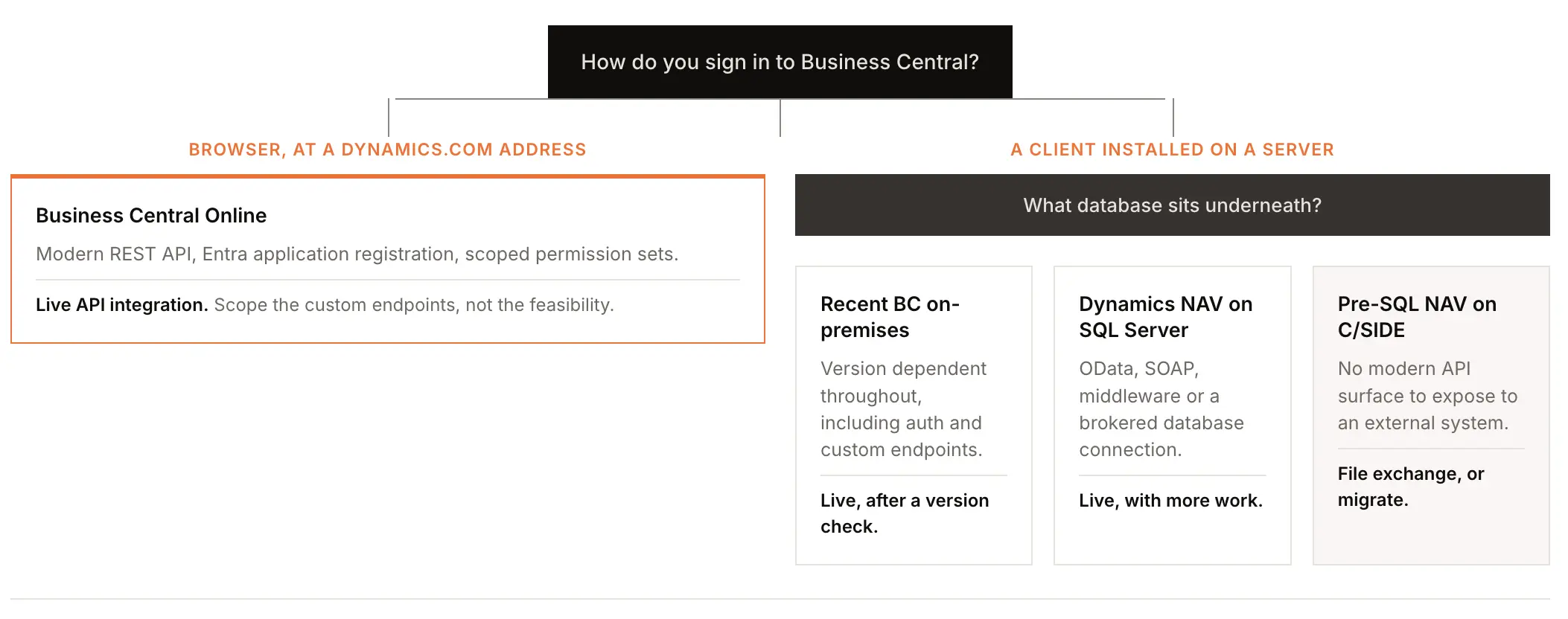
Before discussing APIs or implementation timelines, establish which Business Central environment you actually run.
Business Central Online, Business Central on-premises, Dynamics NAV on SQL Server, and older NAV environments are materially different integration targets.
| Environment | Typical connection | Standard REST API | Custom endpoints | Realistic approach |
| Business Central Online | Microsoft Entra application registration | Yes | Yes | Live API integration |
| Recent Business Central on-premises | Version dependent | Version dependent | Version dependent | Live integration after version check |
| Dynamics NAV on SQL Server | OData, SOAP, middleware or on-prem agent | No modern BC REST surface | Limited | Live, but more implementation work |
| Older pre-SQL NAV / C/SIDE | No modern API surface | No | No | File exchange or migration |
Business Central Online
Cloud Business Central is the simplest environment to integrate with. It supports modern REST APIs, Microsoft Entra application registration, and scoped permission sets.
Most Business Central integration documentation assumes this environment.
Business Central on-premises
On-premises installations require a version check before anyone commits to an architecture.
Older versions may rely on user credentials and web-services access keys instead of the modern OAuth application-registration approach, while custom endpoint support can also differ by version.
Dynamics NAV
NAV running on SQL Server can still be integrated through OData, SOAP, middleware, or brokered database access.
Older NAV environments using the proprietary C/SIDE database are much more restrictive. In those cases, scheduled file exchange or migration may be more realistic than a live API integration.
The practical lesson is simple: ask for the exact version and underlying environment before scoping the project.
Architecture of an AI Order Entry Integration With Business Central
The architecture has four broad layers: intake, extraction and matching, validation, and integration. But understanding the workflow properly means following an actual order through each stage.
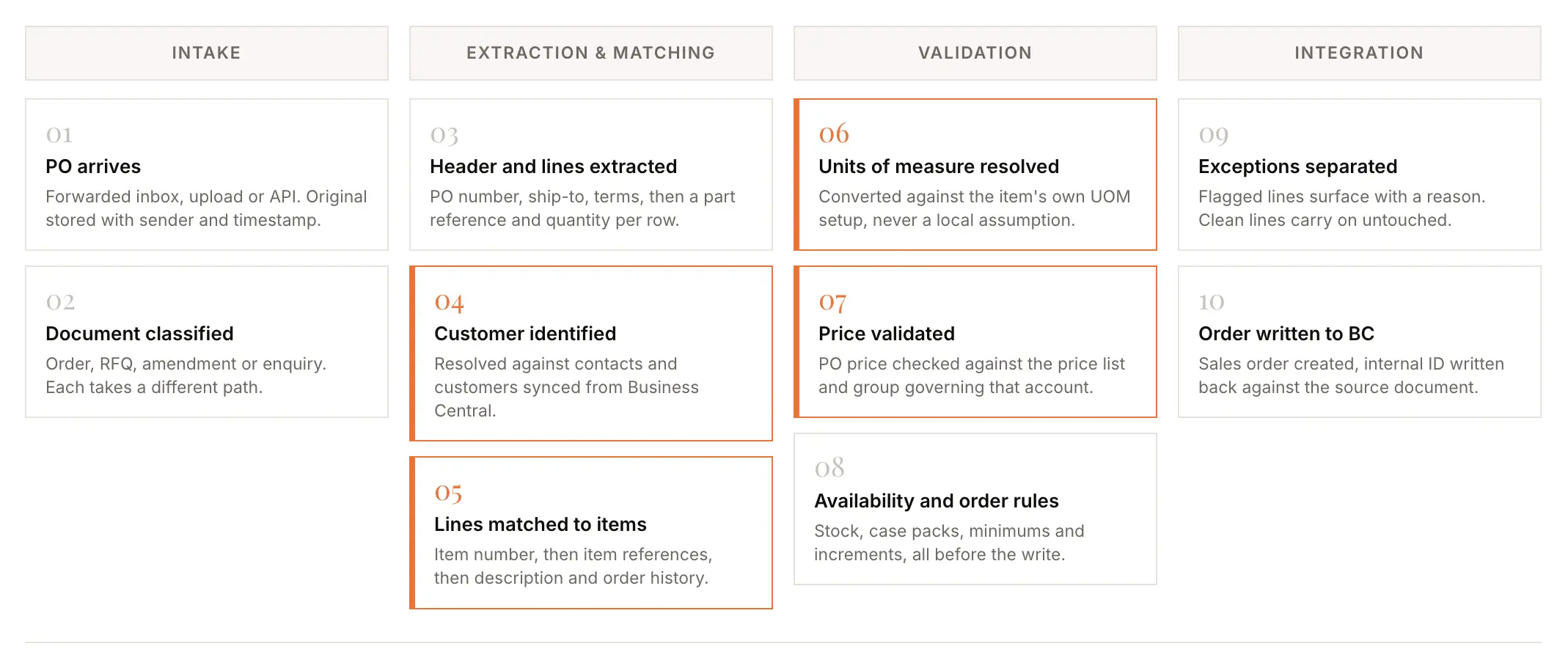
The purchase order arrives
A shared or forwarded inbox is the usual intake point, although direct uploads and API submissions can also be supported.
The intake layer stores the original document together with sender and timestamp information, then passes it forward without interpreting the contents.
Keeping the source document intact creates the audit trail connecting the incoming PO to the final Business Central transaction.
The document is classified before it is read
Not everything arriving in an order mailbox should become a sales order.
A purchase order, request for quotation, order amendment, acknowledgement, and general customer enquiry all need different workflows.
Classification determines what the document is before transaction processing begins.
Extraction pulls the header and line table
The system reads information such as customer details, PO number, ship-to address, requested terms, product references, descriptions, quantities, and prices.
At this stage, the system is only establishing what the document says. It has not yet established whether those values are valid according to Business Central.
The customer is identified against Business Central
Customer matching needs to happen before pricing, item references, payment terms, or ship-to validation can be trusted.
Sender email is one useful signal, but it is rarely sufficient on its own. Shared domains, duplicate customer records, and forwarded purchase orders can create ambiguity.
Better matching combines email information with bill-to and ship-to details, order history, customer names, and other signals available in Business Central.
Lines are matched to Business Central items
Product matching usually follows a hierarchy.
The strongest match is the distributor’s own exact item number. Customer-specific item references come next, followed by product descriptions, attributes, and order history.
The goal is to resolve as many lines as possible through deterministic item data before relying on more flexible description matching.
If the integration cannot identify a product confidently, the line should become an exception rather than being silently mapped to the closest-looking item.
Units of measure and case packs are resolved
Quantity errors are particularly costly in distribution.
A customer might order 12 units while the item is sold in cases of 12. Depending on the interpretation, that could mean 12 pieces or 144 pieces.
The integration should therefore resolve quantities using the item’s Business Central UOM configuration rather than maintaining its own independent assumptions.
Case packs, minimum quantities, and order increments belong in this same validation layer.
Pricing is validated against Business Central
Applying a price and validating a price are different tasks.
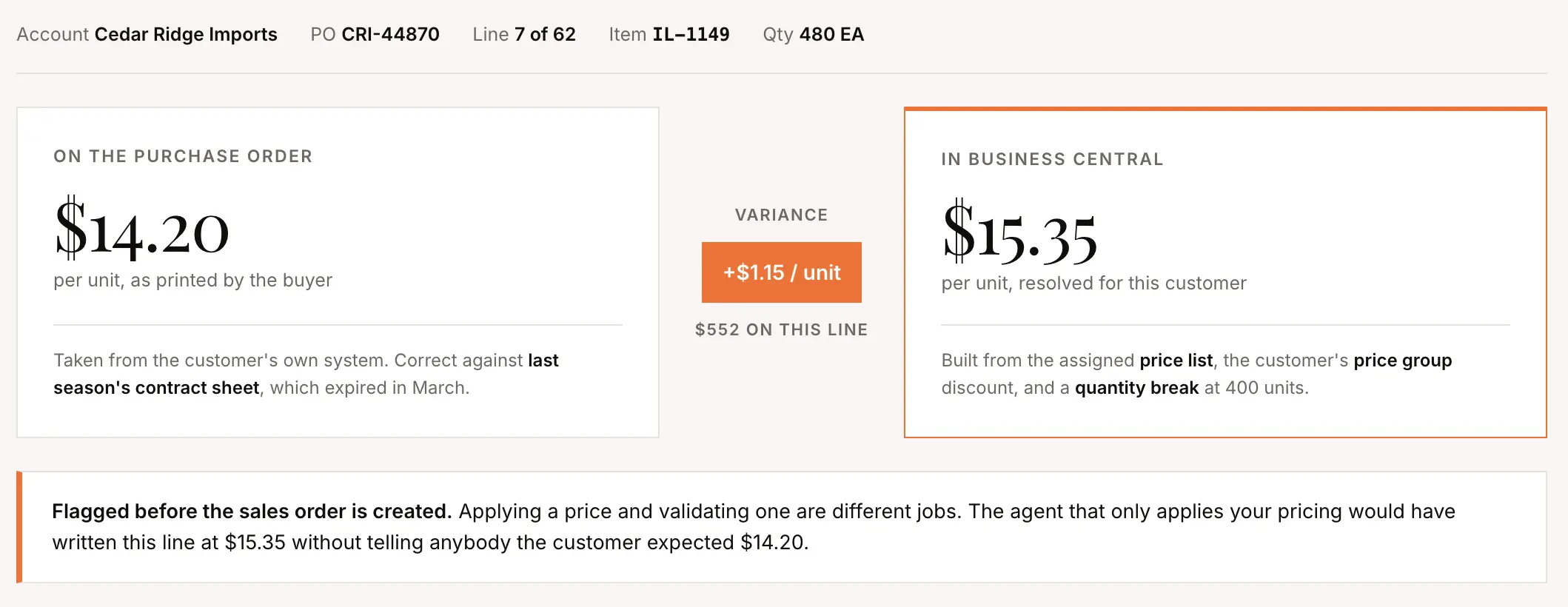
Business Central can calculate the price a customer should pay based on its pricing configuration. But many wholesale purchase orders already contain a price.
The useful validation is therefore:
What the customer says they will pay vs what Business Central says they should pay.
That can involve price lists, customer price groups, negotiated item-level prices, discount rules, and quantity breaks. If those mechanisms are not exposed through the standard API, the integration needs another way to retrieve them.
Availability and order rules are checked
Inventory can then be checked against the requested quantity and your backorder policy.
Other business rules may include:
- Case-pack multiples
- Minimum order quantities
- Quantity increments
- Customer-specific restrictions
- Availability requirements
- Other order-level rules
Running these checks before the write prevents an invalid order from reaching downstream fulfillment.
Exceptions are separated from clean lines
An order should not become a review project simply because one field needs attention.
If 58 lines are clean and two are uncertain, reviewers should see the two exceptions together with the reason each one was flagged.
This is also where line-level confidence becomes useful. Reviewers can focus on low-confidence extraction or matching instead of manually checking every correctly processed line.
The order is written to Business Central
Once the order has cleared validation and any required review, the integration authenticates to Business Central and creates the appropriate transaction.
The resulting Business Central ID should be stored against the source document so the order remains traceable from the original email or attachment through to the ERP transaction.
The whole path on one order
Consider a 40-line customer PO.
The system captures and classifies it, extracts the header and 40 lines, identifies the customer, matches most products through item references, resolves units of measure, checks pricing, and runs order rules.
If 37 lines pass and three need attention, only those three are surfaced.
Once the reviewer resolves them, the clean order is created in Business Central and linked back to the original document.
That is the practical purpose of the architecture: automate the clean majority while making the uncertain minority obvious.
Connecting AI Order Entry Software to Business Central
For Business Central Online, the connection is typically based on an authenticated application registration rather than an application installed directly into your ERP.
Application registration and authentication
An external integration can be registered in Microsoft Entra with its own application identity.
The connection commonly uses:
- Application/client ID
- Client secret
- Tenant ID
- Business Central company ID
- Business Central permission set
This keeps the integration separate from an individual employee account and lets administrators revoke or rotate credentials independently.
What your administrator approves
The administrator authorizes the application and grants it access only to the Business Central objects required for the workflow.
Depending on the implementation, that might include customers, contacts, items, inventory, pricing-related data, sales orders, and estimates.
When file exchange still makes sense
Not every environment needs a live API for every data type.
If an older environment cannot expose a required object, or a custom API is not worth building for a low-change dataset, scheduled file exchange can be a practical alternative.
The trade-off is latency versus implementation complexity.
Business Central API Gaps to Plan For
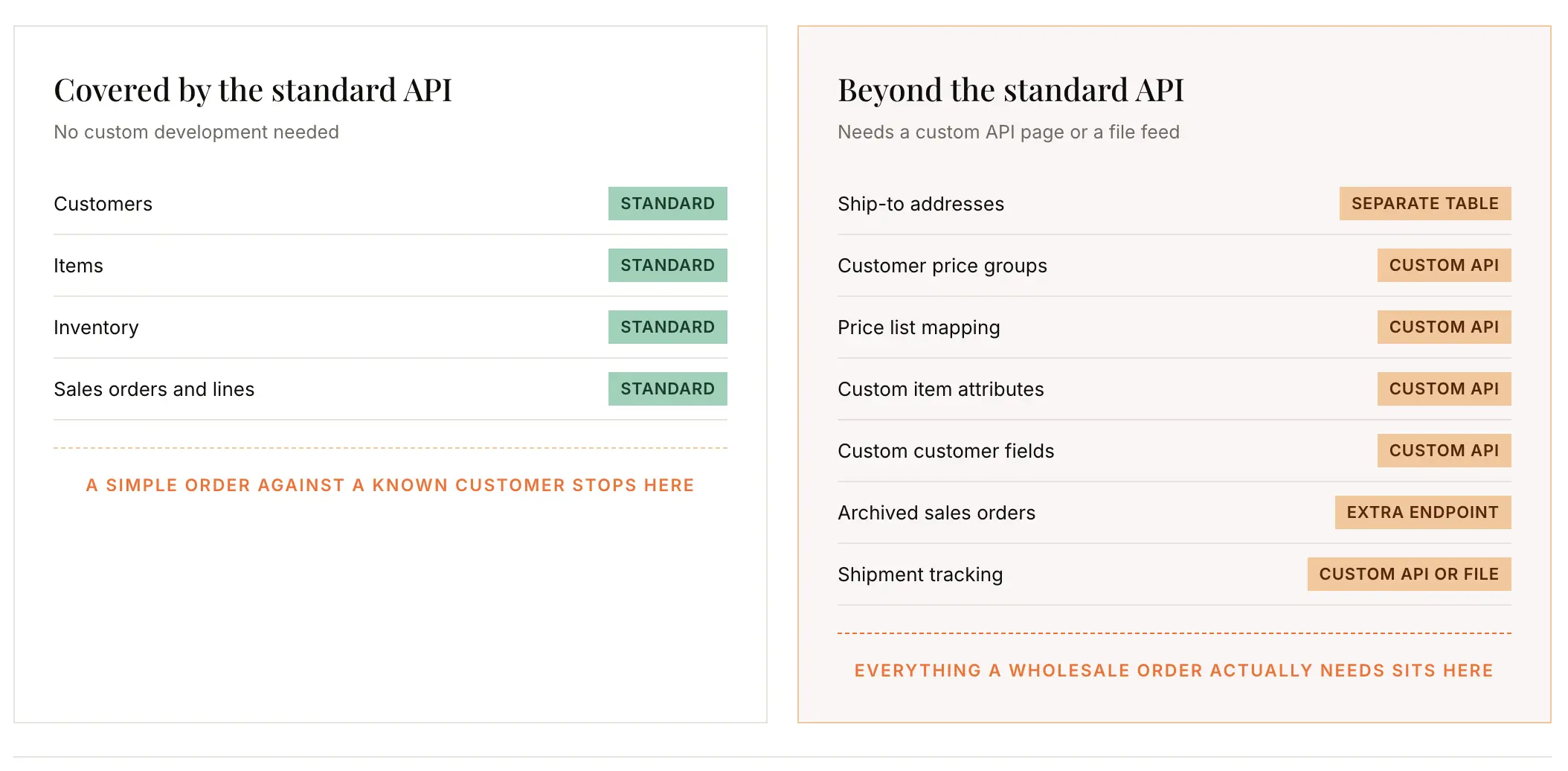
Business Central’s standard APIs handle the basic order workflow well. Customers, items, sales orders, sales lines, and inventory can be accessed through documented interfaces.
The complications appear when your order depends on data outside that standard surface.
| Data required | Standard API | Typical alternative |
| Customers | Yes | Not required |
| Items | Yes | Not required |
| Inventory | Yes | Not required |
| Sales orders and lines | Yes | Not required |
| Ship-to addresses | Limited / separate structure | Custom API or file |
| Customer price groups | Not fully exposed | Custom API |
| Price-list mapping | Not fully exposed | Custom API |
| Custom item attributes | No | Custom API |
| Custom customer fields | No | Custom API |
| Archived sales-order data | Separate structures | Additional endpoint |
| Shipment tracking | Not standard | Custom API or file |
Item and customer fields
The standard item API exposes common item information, but custom attributes such as finish, material, color, or proprietary merchandising fields may sit elsewhere.
The customer API similarly provides many standard account fields while custom fields and some pricing relationships may require additional access.
Ship-to addresses
Business Central commonly stores ship-to addresses separately from the customer card.
If your customers order for multiple warehouses or locations, the integration needs to retrieve and resolve those records rather than assuming one shipping address per customer.
Pricing data
Pricing can be one of the most important gaps.
If customer price groups, price-list assignment, negotiated product pricing, or other precedence rules are not available through standard endpoints, a dedicated API page or another data feed may be required.
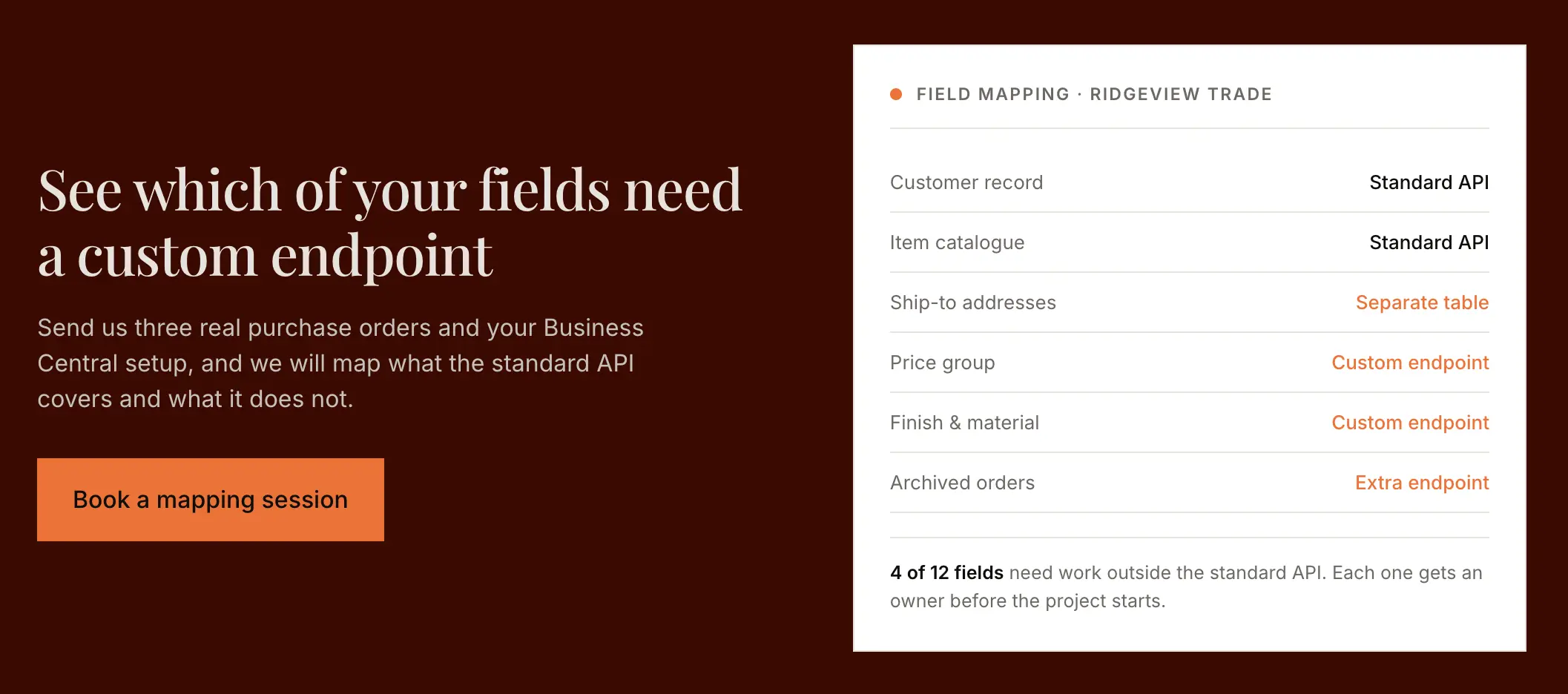
Who builds custom API pages?
Custom API pages are generally written in AL inside the Business Central environment.
In many implementations, this work sits with the company’s Microsoft partner because they already have development access and understand the existing configuration.
Before starting the project, document:
- Which fields need custom endpoints
- Who will build them
- Who owns the code
- Who maintains it after Business Central updates
- What happens if the integration vendor changes
The biggest risk is often not the complexity of the endpoint. It is discovering during implementation that nobody has been assigned to build it.
Data Flow Between AI Order Entry Software and Business Central
The integration moves different types of data in different directions.
Data coming out of Business Central
Typical reference data includes:
- Customers
- Contacts
- Ship-to addresses
- Items
- Item references
- Units of measure
- Pricing data
- Inventory
- Salesperson assignments
- Other custom fields needed for matching
This data gives the order entry platform the context needed to interpret and validate incoming orders.
Data going into Business Central
The primary write is the validated sales order.
Depending on the implementation, the system may also create estimates or controlled customer records.
Sync timing
Reference data generally synchronizes on a schedule, while approved sales orders can be written much closer to real time.
The exact cadence should vary by data type. Inventory normally needs to refresh more often than slower-moving customer or catalogue data.
Business Central implementations should also account for cases where modified timestamps do not update exactly as expected. Periodic full reconciliation can catch records missed by incremental syncs.
Creating and Tracking Sales Orders in Business Central
Once validation is complete, the integration creates a Business Central transaction and stores its internal identifier against the source order.
A few Business Central-specific behaviors should be decided during implementation.
Sales order or sales quote first
Some workflows create a standard sales order immediately.
Others create a sales quote first and then convert it. Microsoft’s Sales Order Agent uses the quote-first approach.
Either model can work, but the choice should align with how your sales team already uses Business Central.
Order numbering
Business Central number series can prevent an external integration from assigning its own sales-order number.
The integration should therefore respect the ERP’s numbering rules rather than assuming an external transaction ID can become the Business Central document number.
Customer PO numbers
The customer’s PO number commonly belongs in the External Document Number field.
If you also need an integration reference, use a separate field rather than replacing the customer reference your finance and customer-service teams already rely on.
Missing customers and items
Whether an integration can create missing master data should be a deliberate governance choice.
Controlled customer creation may be acceptable in some businesses. Automatically creating an item based on an uncertain document match is much riskier because it can affect inventory, pricing, and fulfillment.
What happens after posting
Tracking cannot stop at the open sales-order table.
Depending on the Business Central setup, orders or lines can move into posted or archived structures after shipment and invoicing.
An integration that needs status, history, or revenue data should understand those structures from the beginning rather than treating a disappearing open order as if nothing changed.
Business Central Data That Affects Matching Accuracy
Your match rate depends as much on the quality and structure of your Business Central data as it does on the AI model.
Items and variants
Different companies model color, size, finish, and product families differently.
Some use Business Central variants. Others create separate items or store distinguishing information inside descriptions.
The integration needs to understand how your catalogue is actually structured rather than assuming the standard model is being followed.
Dimensions and custom attributes
Some companies use dimensions or custom fields for product hierarchy, brand, family, or other operational data.
If those values are important for identifying products, they need to be available to the matching layer.
Units of measure
Base, sales, and purchase UOMs can differ for the same item.
The integration should use Business Central’s own conversion data so that a customer ordering in pieces against an item sold in cases does not create a quantity error.
Customers and ship-to addresses
Duplicate customer records create ambiguity.
Multiple ship-to locations create another matching decision because the correct account does not automatically identify the correct destination.
Multiple companies
A single Business Central environment can contain multiple companies.
If that applies to you, the integration needs a deterministic routing rule based on factors such as mailbox, customer, location, or another business identifier.
Human Review and Exception Handling
Human review can happen before an order reaches Business Central or after it is created there.
Pre-write review
Orders containing unresolved exceptions stay in the order entry layer.
A reviewer fixes the issue, approves the order, and only then is the sales order created.
This keeps questionable data out of Business Central.
Post-write review
The integration creates the order in a held or review status and the team resolves the issue inside Business Central.
This can reduce context switching but means unverified records temporarily exist in the ERP.
Exception-only review
Most teams should aim toward exception-based review once the system has been tested.
Clean orders continue automatically, while only uncertain products, pricing discrepancies, invalid quantities, or other exceptions require attention.
A line that cannot be matched confidently should remain unresolved rather than being mapped to the most plausible item.
Handling Business Central Integration Errors
Integration errors generally fall into three categories:
- Business Central rejects the write.
- A customization or extension blocks an otherwise valid transaction.
- The integration fails silently and nobody notices.
Failed writes
Typical causes include:
- Missing customers or items
- Required fields not populated
- Invalid field values
- Data-type mismatches
- Existing Business Central validation rules
- Extensions requiring additional fields
A failed order should retain the original document, show the reason for failure, identify an owner, and support retry after the underlying issue is corrected.
Retries and duplicate protection
Retries need to be idempotent.
If the original request actually succeeded but the response timed out, simply creating another order can produce a duplicate.
The integration should check whether the transaction already exists before retrying the creation step.
Failure visibility
A technically successful failure queue is useless if nobody owns it.
Failures should route to a named person or team with clear monitoring responsibility rather than disappearing into an unmonitored shared inbox.
Access, Permissions, and Security Requirements
An AI order entry integration needs enough access to read the Business Central data required for matching and validation and to create the transactions within scope.
It should not default to unrestricted administrator access.
Use a dedicated application identity
The integration should run through its own application registration rather than an employee’s personal account.
This improves auditability and prevents the connection from breaking when an employee changes roles or leaves.
Apply least privilege
Grant access only to required records and actions, which may include:
- Customers
- Contacts
- Items
- Inventory
- Pricing
- Sales orders
- Estimates, if quotes are included
Mailbox ownership
Incoming orders can contain customer pricing, volumes, and commercially sensitive information.
If order intake depends on a shared mailbox, define who owns it, which identities can read it, and what happens when permissions change.
Existing Business Central controls
Orders created by an integration should still respect the same credit limits, approvals, holds, and other controls applied to manually entered transactions.
Credential rotation
Application secrets expire.
Track the expiry date, assign responsibility for rotating the credentials, and test the new secret before the old one stops working.
Order-data handling
The provider should clearly explain where customer PO data is processed and stored, how long it is retained, and whether it is used to train models shared across customers.
Testing and Rolling Out the Business Central Integration
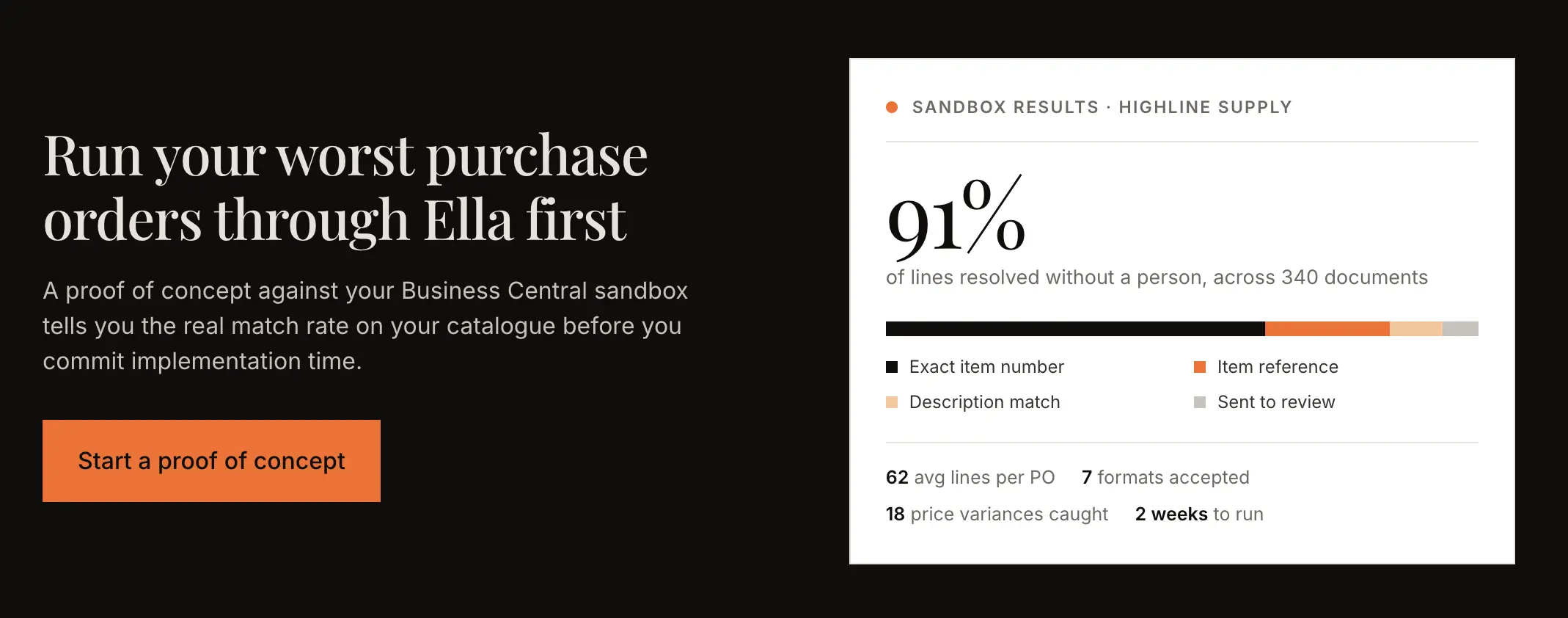
A Business Central integration should be tested against your actual configuration and your actual customer documents before production cutover.
Start in a sandbox
Use a representative Business Central sandbox containing realistic customers, items, pricing, inventory, item references, and custom data.
Also plan for what happens when that sandbox is refreshed, because application registrations, published services, or integration configuration may need to be re-established.
Test difficult documents
Do not build the test set around clean two-line PDFs.
Include examples such as:
- Long multi-page purchase orders
- Excel and CSV orders
- Customer-specific item numbers
- Pricing mismatches
- Duplicate POs
- Discontinued products
- Different units of measure
- Multiple ship-to locations
- Poor scans and irregular layouts
The hard documents reveal whether the workflow can handle your actual order book.
Run in parallel
Operate the AI workflow alongside the existing manual process for a defined period before cutover.
Compare the results and measure:
- Touchless processing rate
- Exception rate
- Product-match rate
- Pricing discrepancies caught
- Failed writes
- Human-review time
The goal is not to prove that the system can process an order. It is to understand which orders it can process without intervention and why the others still need review.
Choosing Between the Sales Order Agent, Third-Party Software, and a Custom Build
There is no single right approach for every Business Central customer.
| Manual entry | Sales Order Agent | Dedicated AI order entry | Custom build | |
| Formats | Anything a person can read | Email, PDF, PNG, JPG | Broader document formats | Whatever you build |
| Order length | Unlimited | Up to 15 item lines | Designed for larger orders | Whatever you build |
| Apply BC pricing | Manual | Yes | Yes | If built |
| Validate PO price vs ERP | Manual | Not documented | Can be supported | If built |
| Confirmed-order amendments | Yes | Limited | Can be supported | If built |
| Freight / charge lines | Yes | Not supported | Can be supported | If built |
| Maintenance | Your team | Microsoft | Vendor | Your engineering team |
| Setup effort | None | Moderate | Moderate | High |
Where the Sales Order Agent makes sense
If your customers send short orders in supported formats, the sender is easy to identify, and you do not need more complex wholesale validation, the native agent deserves serious consideration.
Microsoft maintains it and it lives within the Business Central ecosystem you already govern.
Where dedicated order-entry software fits
A dedicated AI order entry layer becomes more relevant when the orders left behind are the difficult ones:
- Long POs
- Spreadsheets
- Customer-specific pricing
- Price variances
- Multiple UOMs
- Customer part numbers
- More complex wholesale rules
- Messier document formats
When custom development makes sense
Building internally can work when the workflow is narrow and the company has engineering resources willing to own it permanently.
The important word is permanently. Document formats, Business Central APIs, custom fields, and operational requirements will continue changing after the initial project is complete.
A three-year build vs buy AI order entry software comparison prices that permanent ownership alongside the initial build, so the choice rests on total cost rather than launch cost.
How to Evaluate a Business Central Integration Partner
A good evaluation should focus less on whether a vendor says “yes” and more on how specifically they explain the implementation.
Connection and environment
Ask:
- Which Business Central versions do you support?
- Does anything get installed inside our environment?
- How do you authenticate?
- What happens when our sandbox is refreshed?
- Do you support on-premises and NAV environments?
APIs and custom development
Ask:
- Which standard Business Central APIs do you use?
- Which required fields are not available through those APIs?
- Who builds any custom API pages?
- Who maintains them after updates?
- What is the fallback if a custom endpoint is not worth building?
Failure and recovery
Ask:
- Where does a failed write appear?
- Who gets notified?
- Can the original order be corrected and retried?
- How do you prevent duplicate orders?
- How do you track the order after it is posted or invoiced?
Matching and review
Ask:
- How is match accuracy measured?
- What happens when a product cannot be matched confidently?
- How are UOMs handled?
- Can pricing on the PO be compared against Business Central pricing?
- Can reviewers work inside Business Central?
- Are corrections remembered for future orders?
Security
Ask:
- Which permissions are required?
- Why is each permission needed?
- What happens when credentials expire?
- Where is order data processed?
- Is customer data used to train shared AI models?
Specific answers matter more than broad capability claims.
Integrating Ella by WizCommerce With Business Central for AI Order Entry
Ella connects AI order entry to Business Central while keeping Business Central as the system of record.
Built for wholesale order intake, Ella reads customer POs from formats such as PDFs, spreadsheets, email text, scans, and images, then uses Business Central customer, item, pricing, inventory, item-reference, and UOM data to interpret and validate the order.
Teams can also define customer-specific business logic using simple written instructions. For example, rules around quantities, product matching, pricing, UOMs, or other customer-specific requirements can be applied without rebuilding the entire workflow for each account.
Each extracted line carries a confidence score, allowing reviewers to focus on uncertain fields instead of rereading the entire PO. Ella can also separate multiple purchase orders contained in a single document and process them as individual orders.
Pricing is validated rather than simply applied, so discrepancies between the customer’s PO and the applicable Business Central pricing can be flagged before the sales order is created.
Once matching and validation are complete, clean orders can move through automatically while exceptions are surfaced for review. After those exceptions are resolved, Ella sends the validated sales order into Business Central.
What Makes a Business Central AI Order Entry Integration Work in Practice
A successful AI order entry integration with Business Central depends on much more than whether a system can read a purchase order.
The real work is making the automation operate correctly against your Business Central environment: the version you run, the product and customer data you maintain, the pricing mechanisms you use, the custom fields your workflows depend on, and the API gaps that may need to be filled.
Business Central should remain the system of record while the order entry layer handles intake, matching, validation, and exception management.
Before committing to an approach, test it against the orders your team actually struggles with, not the cleanest examples in your inbox. That is where you learn how much of your order book can genuinely be automated and what still requires a person.
Frequently Asked Questions
How does AI order entry integrate with Dynamics 365 Business Central?
AI order entry software typically connects to Business Central through an authenticated application registration. It reads customer, item, pricing, inventory, and related master data for matching and validation, then writes validated sales orders back into Business Central. Custom API pages may be needed where the standard APIs do not expose required fields.
Can the Business Central Sales Order Agent handle all our orders?
Not necessarily. Microsoft’s Sales Order Agent is designed for specific order types and supports up to 15 item lines with email body, PDF, PNG, and JPG intake. Companies processing longer orders, spreadsheets, more complex UOMs, price discrepancies, or wholesale-specific rules may still require another workflow.
Do we need an extension installed in Business Central?
Not for every integration model. A Business Central Online integration can connect through an authenticated application registration without installing an extension. Custom API pages or other Business Central development may still be required when standard APIs do not expose the data your workflow needs.
Do I need an ERP developer to build the integration?
Usually not for the basic connection. Development may be required for Business Central-specific API pages that expose custom fields, pricing relationships, ship-to data, or other records missing from the standard API. That work is commonly handled by your Microsoft partner or internal Business Central developer.
Is the sync real time?
Sales orders can be pushed into Business Central as soon as they clear validation, while reference data such as items, customers, pricing, and inventory is normally synchronized on schedules appropriate to each data type.
Will this work with Dynamics NAV or an older on-premises system?
It depends on the version. Business Central Online offers the most straightforward modern API path. Recent on-premises environments may also be integrated, while older NAV environments can require OData, SOAP, middleware, or file exchange. Very old pre-SQL NAV environments may not provide a usable live API surface.
What permissions does the integration need in Business Central?
The integration typically needs read access to the master data required for matching and validation, such as customers, items, pricing, and inventory, plus permission to create or update sales orders and estimates where relevant. Permissions should be limited to the records the workflow actually needs.
At what status do integration-created orders appear in Business Central?
That depends on how the workflow is configured. The system may create a standard sales order after upstream validation or create a held or review-state order when exception handling happens inside Business Central. Existing approval, credit, and payment rules should continue to apply.
What happens if an order fails to post to Business Central?
The failed transaction should remain visible with the reason for failure, be routed to an owner, and support retry after the issue is corrected. The retry process should also check whether the original order was already created to avoid duplicates.
Why can order updates stop after an order is invoiced?
Some Business Central configurations move sales-order data into posted or archived structures after invoicing. An integration reading only the open sales-order table can therefore miss later status changes. The implementation should account for posted and archived transactions as well as open orders.
Does this work with item variants, dimensions, and multiple companies?
It can, but the integration needs to reflect how those structures are actually configured in your Business Central environment. Variants, custom dimensions, product hierarchy, and company routing can differ significantly between businesses.
Will our Microsoft partner need to be involved?
Often, yes. If the integration requires custom API pages or access to Business Central fields not available through the standard endpoints, your Microsoft partner is commonly the team that builds and maintains those extensions.
Do our customers need to send orders to a new email address?
Usually not. Existing order inboxes can typically remain in place, with orders forwarded or routed into the automated workflow. Your customers can continue sending orders using the process they already follow.
How long does the integration take?
The timeline depends more on your Business Central configuration and required custom endpoints than on the basic connection itself. Customer and item data quality, pricing complexity, custom fields, API development, and availability of your Business Central administrator or Microsoft partner usually determine the implementation schedule.