Skip to content



Your Epicor environment already knows the customer, the contract price, the part number, and the stock position. But someone on your team may still be typing all of that in manually from a PO that landed in a shared inbox twenty minutes ago.
That is the gap Epicor integration with AI order entry software is designed to close. It does not replace Epicor or require customers to change how they place orders. Instead, it reads the purchase orders they already send, validates the order data against Epicor, and creates the sales order through the same Epicor workflows your team already relies on.
This guide explains how Epicor integration with AI order entry software works end to end, how the setup differs across Epicor Kinetic, Prophet 21, Eclipse, and BisTrack, which integration methods are available, and what data is ultimately written back into Epicor when an order is created.
What is Epicor integration with AI order entry software?
Epicor integration with AI order entry software connects incoming customer purchase orders with the data already inside Epicor. It uses customer, product, pricing, and inventory records from Epicor to turn an incoming PO into a validated sales order without someone re-keying every line.
Epicor remains the system of record. The integration handles the work required to get order data into Epicor accurately and in the format the ERP expects.
What Epicor AI order entry integration is not
It is useful to separate this from three other approaches that are often grouped under order entry automation.
EDI moves structured documents between trading partners that have already agreed on a format and connection. It works well for customers that are set up for EDI, but does not solve the orders coming from customers outside that network.
Template-based capture relies on predefined document layouts. It works when customers keep sending the same PO format, but new customers or layout changes can require new templates.
RPA automates the clicks and keystrokes someone would normally perform inside a system. It can reduce manual entry, but it does not inherently determine whether the customer, product, quantity, or price being entered is correct.
Epicor-connected AI order entry is different because it does not depend on a fixed document layout or simply replay a sequence of clicks. It interprets the order and uses the data in Epicor to decide how that order should be translated into the ERP.
Where it sits between the inbox and Epicor
The integration sits in front of Epicor rather than replacing anything inside it.
Customers can continue sending purchase orders through the channels they already use, while Epicor continues to manage the customer, product, pricing, inventory, and downstream order workflow.
The integration handles the gap between the two. Clean orders can move into Epicor with little or no manual intervention, while anything that needs judgement, such as an unmatched item or pricing discrepancy, is surfaced for review before the order moves forward.
Why is Epicor purchase order entry still manual at most distributors?
Epicor purchase order entry often stays manual not because Epicor cannot handle the order, but because the information reaching it is messy. Customer POs come in different formats, use different part numbers, and often include pricing or order details that need interpretation before they can be entered correctly.
The time is usually spent in that translation step between the incoming PO and Epicor.
PO formats vary from customer to customer
Most distributors are not receiving every order in one clean, structured format. One customer sends a PDF, another sends a spreadsheet, another types the order into an email, and another may still send a scanned document or fax.
The challenge is that each customer’s PO format can look different. Your team gets used to handling that variation, but it becomes a real barrier when you try to automate Epicor order entry at scale.
Customer part numbers do not always match Epicor
Customers also do not always order using the same part numbers you use inside Epicor.
Many distributors maintain customer-specific part-number cross-references for exactly this reason. When that mapping already exists, the match is straightforward. But when a customer sends an unfamiliar part number or only a product description, someone still has to work out which Epicor item they actually mean.
That knowledge often sits with the person who knows the account best, which makes the process difficult to standardize.
PO pricing does not always match Epicor pricing
Pricing creates another layer of manual review.
A customer may submit a PO using an older price while Epicor already holds a newer contract price or price-list value. The order may still be perfectly valid, but someone has to catch the difference and decide how it should be handled before the order moves forward.
Without Epicor order entry automation around that check, the comparison usually happens line by line.
More order volume usually means more manual capacity
This is where the issue becomes hard to ignore.
If order volume grows but the process stays manual, capacity usually grows by adding more people. More POs mean more documents to open, more part numbers to match, more prices to check, and more lines to key into Epicor.
That is why many distributors start looking at Epicor order entry automation when they reach the point where the next increase in order volume also means another hiring decision.
Where does native Epicor order entry automation stop?
Epicor already includes several ways to automate order entry, especially when orders arrive through structured, repeatable channels. The question is where that native automation works well, and where manual work still remains.
In most cases, Epicor handles predictable order flows well. The harder part is the long tail of customers sending POs in different formats, through different channels, and without a predefined structure.
What Epicor already automates
Epicor Kinetic offers Order Entry Automation through its Enterprise Content Management suite. It uses Epicor Intelligent Data Capture to capture, validate, and process information from incoming order documents.
Epicor BisTrack also includes Order Entry Automation, combining OCR and PDF reading with the BisTrack EDI interface. For repeat customers, administrators can configure templates so BisTrack recognizes their purchase order formats.
Epicor also offers the Prism EDI Agent for Kinetic users, along with the Storefront Connector for connecting ERP and EDI workflows with platforms such as Shopify, eBay, and BigCommerce.
Where Epicor EDI fits
Epicor EDI provides pre-built connections across products including Kinetic, Prophet 21, Eclipse, iScala, and CMS.
For customers already set up as EDI trading partners, this is usually the most efficient route. Orders arrive in an agreed, structured format and can move directly into the ERP without someone interpreting the document first.
The limitation is coverage. EDI only works for customers that have gone through the setup required to exchange structured documents with you. Orders from everyone outside that network still need another path into Epicor.
Where template-based capture reaches its limit
Template-based capture works well when the same customer sends the same PO layout repeatedly.
The limitation appears when that structure changes. If a customer redesigns its purchase order, the existing template may no longer match. A new customer also needs a template before its orders can follow the same automated path.
That makes templates useful for stable, repeatable order flows, but harder to scale across a large customer base where PO formats keep changing.
Where the gap remains
Native Epicor order entry automation is strongest when the order flow is already structured and predictable.
If most of your volume comes from a small group of customers using EDI or consistent PO templates, the native tools may cover a large part of the process.
The gap appears when a significant share of orders still arrives by email in PDFs, spreadsheets, scans, or other customer-specific formats. That is where an AI order entry integration with Epicor can sit alongside Epicor’s native tools, handling the orders that do not fit cleanly into EDI or template-based workflows.
How does Epicor integration with AI order entry software work?
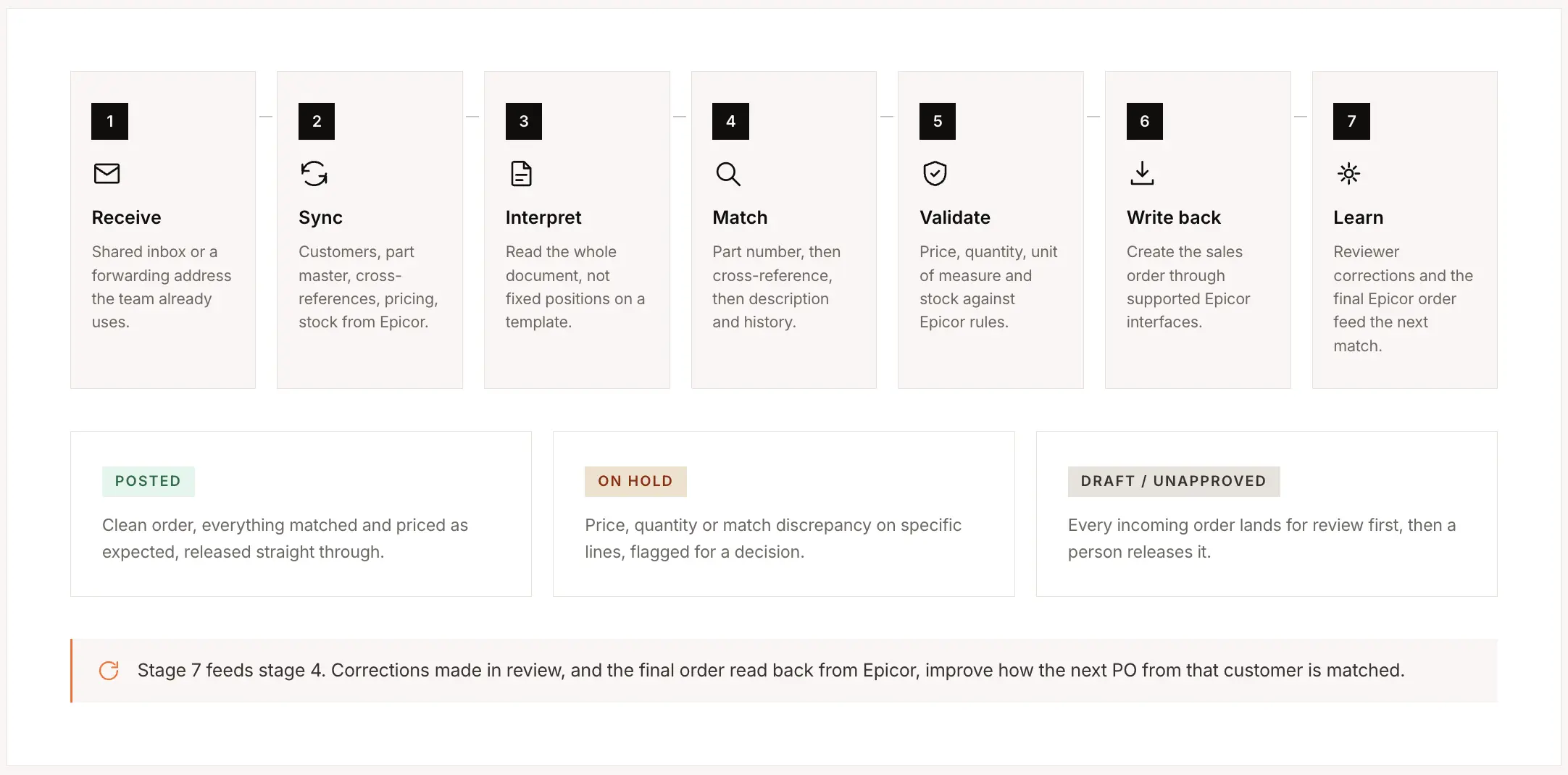
Epicor integration with AI order entry software typically works across seven stages, from the moment a customer sends a purchase order to the point where a validated sales order is created in Epicor.
The flow starts with order intake, followed by a sync of the master data the system needs from Epicor. The PO is then read and interpreted, matched against Epicor records, validated for exceptions, and written back into the ERP. Any corrections made during review can then be used to improve how similar orders are handled in the future.
Stage 1: Receive orders through the channels customers already use
The integration connects to the channels where your customers already send orders, so there is no need to change their ordering process or ask them to use a new portal.
A common setup is to connect directly to a shared orders inbox. When a new purchase order arrives, the system picks up the message and its attachments automatically.
Another option is to use a dedicated order-processing email address. Your team can forward selected customer emails to that address when they want an order processed.
That forwarding model can also be useful when an order needs additional context. A team member can add an instruction in the body of the forwarded email, such as how a specific line should be handled, and that instruction can be considered alongside the attached purchase order.
Stage 2: Sync the required master data from Epicor
Before an incoming PO can be matched accurately, the integration needs access to the relevant data already stored in Epicor.
That typically includes:
- customer accounts and ship-to locations
- the part or item master
- product descriptions and attributes
- customer-specific part-number cross-references
- price lists and contract pricing
- current inventory or stock positions
This data can be synced from Epicor on a scheduled basis rather than being fetched from the ERP every time a new order arrives.
Using a synchronized working copy keeps order processing fast and avoids unnecessary API calls back to Epicor for every field on every PO. How frequently that data should refresh depends on the business. A manufacturer or distributor with frequently changing inventory or pricing may want a shorter sync interval than one where those records remain relatively stable.
Epicor still remains the source of truth. The synchronized data simply gives the order-processing layer the context it needs to interpret each incoming PO.
Stage 3: Read and interpret the purchase order
Once the order is received, the system reads the full document rather than looking for values in predetermined positions.
That is important because customer PO formats are rarely consistent. One customer may place the PO number in the top-right corner, another may place it in a header table, and a third may send an Excel sheet with a completely different structure.
The system first works out which customer the order belongs to. It can use signals such as the sender’s email domain, company name, letterhead, billing address, shipping address, or information contained in the document itself.
It then identifies the information needed to build the order, including:
- customer PO number
- requested dates
- line items
- part numbers
- product descriptions
- quantities
- units of measure
- prices
- ship-to details
Because the document is interpreted as a whole, the same process can be used for PDFs, spreadsheets, scanned documents, photographs of printed POs, and orders typed directly into an email body.
Stage 4: Match the PO against Epicor records
Extracting the information from the PO is only part of the job. The next step is working out what each value corresponds to inside Epicor.
For product matching, the process typically follows a hierarchy.
The first check is usually an exact match against your internal Epicor part number.
If that does not match, the system can look at the customer-specific part-number cross-reference stored in Epicor. This is particularly important for distributors where customers routinely order using their own SKU or item numbers rather than the distributor’s internal part number.
If neither produces a match, the system can compare the product description and relevant product attributes against the Epicor part master.
Previous order history for that customer can also provide additional context when several products look similar. If the customer has repeatedly ordered one specific item under a particular description, that history can help distinguish between otherwise close matches.
Ship-to addresses can be handled in much the same way. The address on the PO is compared with the existing ship-to records in Epicor so the system can reuse an existing location instead of unnecessarily creating duplicates.
A new ship-to should only be created when the address genuinely does not correspond to an existing record.
Stage 5: Validate the order and flag exceptions
Once the customer, products, quantities, and other order details have been matched, the order can be checked against the business data and rules already maintained in Epicor.
Pricing is one of the most important checks.
The price shown on the customer’s PO can be compared with the contract price, customer-specific price, or applicable price list in Epicor. If the two do not match, the discrepancy can be flagged rather than silently accepting one value over the other.
The same validation can apply to quantities and units of measure. For example, an order can be checked against case-pack requirements, minimum quantities, or the units Epicor expects for that item.
Inventory can also be considered against the stock position and backorder rules available from Epicor.
The goal is not to force every unusual order through automatically. If something cannot be resolved confidently, it should become a specific exception for a person to review.
That means the reviewer can focus on the few fields that need a decision instead of reopening and checking the entire purchase order.
Stage 6: Write the validated order back into Epicor
Once the order has been matched and validated, the integration creates the sales order in Epicor using the supported integration method for that particular Epicor environment.
Depending on the workflow you choose, the order can enter Epicor in different states.
A clean order may be posted automatically.
An order with a pricing discrepancy or uncertain match may be created on hold.
Other teams may prefer all incoming orders to land as drafts or unapproved orders until someone reviews and releases them.
The exact terminology varies across Epicor products, but the principle is the same: the order is created inside Epicor with the fields your team would normally enter manually, while the workflow determines whether it can continue immediately or needs review first.
That can include customer details, ship-to information, PO number, line items, quantities, units of measure, pricing, requested dates, and other fields required by your Epicor setup.
Stage 7: Learn from corrections made during review
The final stage is what happens when someone changes something the system originally proposed.
Suppose a line was matched to the wrong Epicor part and a reviewer selects the correct one. That correction becomes useful context for the next order from the same customer.
The same applies to customer-specific terminology, unusual product descriptions, shipping preferences, or other recurring patterns.
Importantly, the learning loop does not have to depend only on corrections made inside a separate review screen. If the integration can read the final order back from Epicor, it can compare what was originally proposed with what your team ultimately approved.
That allows the system to learn from the work your team is already doing rather than requiring them to maintain a separate set of rules or training data.
Over time, predictable orders can require less review, while unusual or ambiguous cases continue to be surfaced for a person to handle.
Which Epicor integration methods work with AI order entry software?
There are five practical ways to connect an AI order entry layer with Epicor. Which one makes sense depends on the Epicor product and version you use, the API access included in your licensing, and whether your environment is cloud-based or on-premise.
Prebuilt Epicor connectors
A prebuilt connector is usually the simplest route when one already exists for your Epicor product. Much of the field mapping and connection logic has already been built, so implementation mainly involves authentication, confirming the data that needs to move between systems, and mapping any fields specific to your environment.
The important thing to check is product coverage. Epicor is not one uniform ERP, so a connector built for Kinetic cannot automatically be assumed to work with Prophet 21, Eclipse, or BisTrack.
Direct integration through Epicor REST APIs
A direct REST API integration gives you more control over how data moves between Epicor and the order entry layer.
The integration can use Epicor APIs to read the master data needed for order processing and write validated sales orders back into the ERP. Your integration team maps the Epicor objects and fields that need to be read or updated, including any customer-specific or user-defined fields required by your workflow.
The main dependency to check early is API access. The APIs and operations available to you can depend on the Epicor product, version, deployment model, and licensing you already have. In particular, confirm that your environment supports the operations required to create sales orders, not just read data from Epicor.
Middleware or iPaaS
Middleware or an integration platform as a service (iPaaS) sits between Epicor and the AI order entry layer.
Instead of connecting the two systems directly, the middleware handles data translation and movement between them. This can make sense when an on-premise Epicor environment does not expose the API access you need, when several systems need to feed the same workflow, or when your existing integration partner already maintains an Epicor connector.
Middleware can also give your IT team a central place to monitor integrations, view errors, manage retries, and see whether an order failed to reach Epicor.
The trade-off is that you are adding another system to the integration architecture, so there is one more layer to maintain and troubleshoot.
RPA and screen automation
RPA takes a different approach. Rather than connecting through an Epicor API, it interacts with the Epicor interface much like a person would: opening screens, entering values into fields, and moving through the order-entry workflow.
It can be useful when no better integration path is available, particularly with older or highly customized environments. But it is generally a less robust option for long-term Epicor order entry automation.
A screen change can break the automation, error handling is harder to manage, and the process does not provide the same clean programmatic connection you get through an API or connector.
For that reason, RPA is better treated as a fallback or interim option rather than the preferred integration architecture.
File or FTP exchange for older Epicor environments
File-based integration is still a practical option for older or heavily customized Epicor environments.
In this setup, the order entry layer creates a structured file in a format Epicor already knows how to import. That file is then placed in a defined location, such as an FTP or SFTP folder, where an existing Epicor process picks it up and creates the order.
This approach is not real-time in the same way as a direct API connection, but that does not necessarily make it unsuitable. Many established Epicor environments already use file-based imports for ecommerce orders or other external systems, so the underlying ingestion process may already be in place.
Which integration method fits your Epicor environment?
There is no single integration method that is right for every Epicor deployment. A cloud environment with the required APIs may be best suited to a direct connection, while an older on-premise instance may be better served through middleware or an existing file-based workflow.
| Integration method | Setup effort | Real-time | Validation support | Maintenance | Best fit |
| Prebuilt connector | Low | Yes | High | Low | Epicor products with an existing supported connector |
| Direct REST API | Medium | Yes | High | Low | Cloud or API-enabled Epicor environments |
| Middleware / iPaaS | Medium | Yes | High | Medium | On-premise or multi-system environments |
| RPA / screen automation | Low | Partial | Limited | High | Older environments where other integration options are unavailable |
| File / FTP | Low | Batch | Medium | Medium | Older or heavily customized Epicor environments |
How does Epicor integration differ across Kinetic, Prophet 21, Eclipse, and BisTrack?
Epicor is a family of ERP products, not one single system. Kinetic, Prophet 21, Eclipse, and BisTrack each have different integration surfaces, data structures, and workflow conventions.
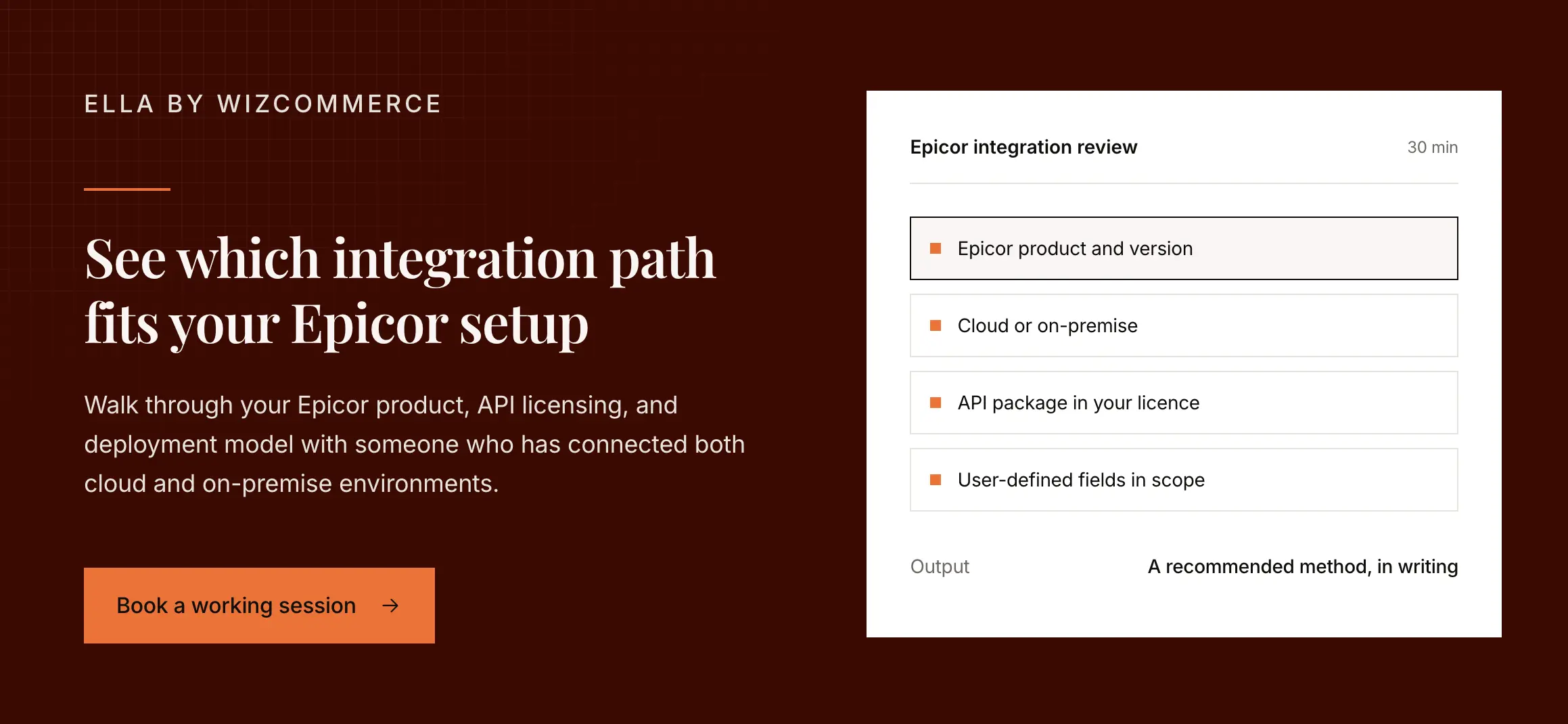
That means the first question in any Epicor order entry integration project should be simple: Which Epicor product and version are you running?
The answer determines how data is read, how sales orders are created, which fields are available, and what needs to be accounted for during implementation.
Epicor Kinetic
Epicor Kinetic is commonly used by manufacturers and mixed-mode businesses. It exposes REST APIs alongside Epicor business objects that represent entities such as customers, parts, and sales orders.
One useful aspect of Kinetic is how it handles user-defined fields. When a new field is added in Epicor, that field can become part of the schema exposed through the API, allowing an integration to read or write it without waiting for a separate product release from the integration vendor.
Business Activity Queries, or BAQs, can also be used to expose specific sets of Epicor data that an integration needs to read.
Epicor Automation Studio provides another option for building low-code workflows around those processes.
The main thing to establish early is whether your Kinetic environment is cloud-based or on-premise, because that affects what can be accessed and how the integration should be designed.
Epicor Prophet 21
Prophet 21 is widely used across wholesale distribution, and its integration setup comes with a few details that need to be understood upfront.
API access is separately licensed, so one of the first questions should be which API package your organization already has and whether it includes the operations required to create sales orders.
Item identifiers also need attention. When a manufacturer part number is longer than the primary item field allows, some businesses store the complete reference in an extended description or another field. That can make product matching a two-field exercise rather than a simple lookup against one item number.
Bulk export limits can also affect how master data is initially loaded into the order entry integration.
On the write-back side, Prophet 21 workflows may have newly created orders land in an unapproved state, allowing someone to review and activate them through the existing order entry process.
Epicor Eclipse
Epicor Eclipse is common among electrical, plumbing, HVAC, and PVF distributors.
Its architecture differs from the other Epicor products because Eclipse runs on a multi-value database rather than a conventional relational database. That difference matters when designing the integration, particularly for teams that are more familiar with Kinetic or Prophet 21.
Eclipse environments can also use different generations of APIs. Older web APIs remain in use, while newer API packages may be licensed separately.
So before designing an AI order entry integration with Eclipse, you need to establish which API generation and packages are available in your environment.
There are also product-specific naming conventions to account for. For example, what other Epicor products may refer to as a quote is represented as a bid in Eclipse.
These details sound small, but they matter when fields and workflows are being mapped.
Epicor BisTrack
Epicor BisTrack is designed around building materials and lumber distribution, where job-site and delivery-site information plays a much larger role in order processing.
A customer order may need to ship directly to a construction site rather than to the customer’s primary address. Job references, site names, and delivery details therefore need to travel with the sales order because they can affect downstream picking, labeling, and delivery workflows.
BisTrack also has its own native order automation capabilities built around configured document templates and the BisTrack EDI interface.
Any additional Epicor order entry automation therefore needs to account for what BisTrack is already handling and where unstructured or non-template orders still require manual work.
Side-by-side comparison
| Epicor Kinetic | Prophet 21 | Eclipse | BisTrack | |
| Primary industry | Manufacturing, mixed mode | Distribution | Electrical, plumbing, HVAC, PVF | Building materials, lumber |
| Integration surface | REST APIs and business objects | Licensed API package | Multiple API generations | EDI interface plus APIs |
| Database model | Relational | Relational | Multi-value | Relational |
| Key integration consideration | Cloud vs. on-premise access | API licensing, item IDs, export limits | Multi-value architecture and API generation | Job-site and delivery-site requirements |
| Quote terminology | Quote | Quote | Bid | Quote |
| Confirm first | Deployment model and user-defined fields | Which API package is licensed | Which API generation is available | Template and EDI coverage |
What happens when an order is submitted to Epicor?
When an order is submitted, the integration makes a programmatic call into Epicor rather than writing directly to the database underneath it.
That distinction matters. The goal is not simply to place data into Epicor, but to create the sales order through the same application logic Epicor uses for normal order creation.
The order goes through Epicor business objects
In Epicor Kinetic, sales order creation can go through Epicor business objects, which expose the application logic used to create and update orders.
That means the order can still pass through Epicor’s own validation, defaulting, and posting logic rather than bypassing it.
So when a validated order is written into Epicor, it can pick up the same customer defaults, pricing behavior, order rules, and downstream processes that would apply if someone entered the order manually.
This is an important part of AI order entry integration with Epicor because the objective is not just to populate fields. The order needs to enter Epicor in a way the ERP recognizes and handles correctly.
Why direct database writes should be avoided
Writing directly to Epicor tables bypasses the business logic the ERP normally applies during order creation.
That creates two risks.
First, the integration may write technically valid data without triggering the validation, defaults, or workflow rules that Epicor would normally apply.
Second, direct database dependencies can make upgrades more fragile. If Epicor changes an underlying schema, an integration tied directly to those tables may need to be reworked even when the supported application interfaces continue to function normally.
This is worth asking any vendor directly:
How do you create the sales order in Epicor?
The answer should be specific. You want to know whether the integration uses supported Epicor APIs and business objects or relies on direct database writes.
For Epicor order entry automation, this is one of the most important architectural details because everything downstream depends on the order being created in the way Epicor expects.
Test in a sandbox before production
Before any automated orders are written into a live Epicor environment, the integration should be tested in a sandbox or test instance.
This gives your team a chance to see how orders actually land in Epicor and verify the field mapping before production traffic begins.
During that testing, you can confirm things such as:
- which customer and ship-to records are selected
- how part numbers are mapped
- which pricing values are written
- how units of measure are handled
- where discrepancy notes appear
- whether the order lands as posted, held, draft, or unapproved
- whether the expected Epicor defaults and downstream workflows are triggered
Any mapping or workflow issues can then be corrected before real customer orders are involved.
Testing the full order flow in a sandbox is much safer than discovering those differences after Epicor order entry automation has already gone live.
What gets written into Epicor, field by field?
A well-configured integration writes the same core fields your team would normally enter manually, along with a few extra fields that make review easier. Defining these fields upfront helps avoid unnecessary adjustments after go-live.
Header-level fields
At the order header level, the integration can write the customer account, bill-to and ship-to addresses, customer PO number, requested date, shipping method, freight terms, and payment terms.
If the purchase order does not include a value, Epicor can use the default already configured for that customer. This is worth confirming during implementation so your team knows exactly which values come from the PO and which come from Epicor.
Line-level fields
At the line level, the integration can write the internal part number, customer part number, quantity, unit of measure, unit price, and requested date.
The customer part number can also be retained for reference even after it has been matched to the corresponding Epicor item.
Line numbering can follow the source document, including sub-line references where one PO line is split across multiple quantities or ship dates.
Unit of measure
A unit of measure is one field worth deciding upfront.
Instead of converting the value before it reaches Epicor, the integration can preserve the unit exactly as the customer submitted it and let Epicor handle the conversion based on the rules already configured in the ERP.
This keeps the integration focused on capturing the order correctly while Epicor continues to manage the conversion logic.
Other fields worth planning for
A few fields are easy to overlook during initial scoping.
For project-based orders, job site ID and job name may need to travel with the order because they affect downstream delivery and labeling.
Product attributes such as color may already be included in the part number, but they can still be useful during review to confirm the correct item was matched.
It can also be useful to write a link to the original purchase order into Epicor so a reviewer can open the source document without leaving the ERP.
A worked example
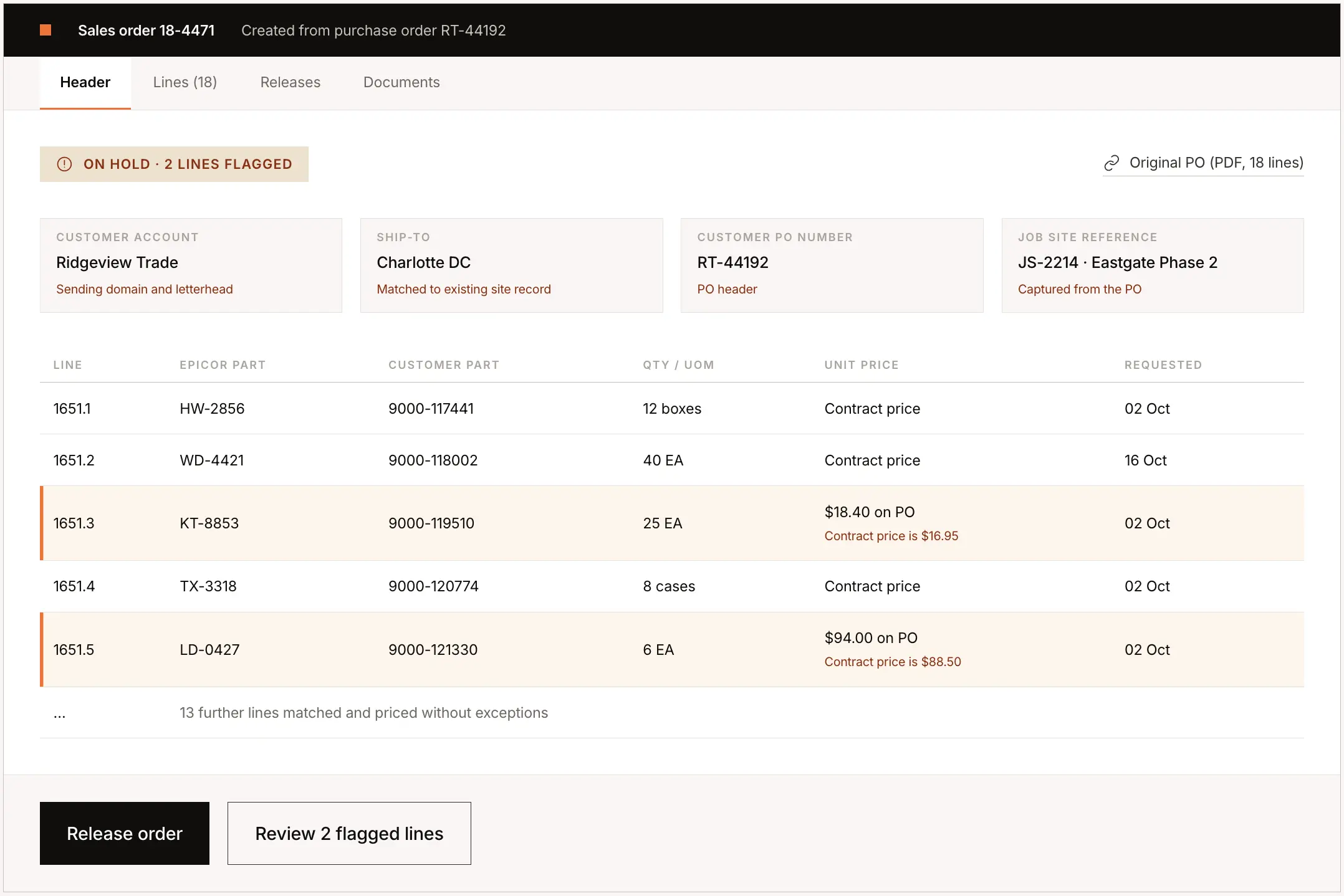
Suppose Ridgeview Trade sends an 18-line purchase order as a PDF, with a project reference in the header and two lines scheduled for different ship dates.
The integration identifies the customer, matches the ship-to against an existing Epicor record, and checks each line against the part master and customer part-number cross-reference.
The order written into Epicor could look like this:
| Epicor field | Value written | Where it came from |
| Customer account | Ridgeview Trade | Sending domain and letterhead |
| Ship-to | Charlotte DC | Matched to an existing site record |
| Customer PO number | RT-44192 | PO header |
| Requested date | Per line where staged | PO line |
| Part number | HW-2856 | Cross-reference lookup |
| Customer part number | 9000-117441 | Retained for reference |
| Quantity and unit of measure | 12 boxes | Written as submitted by the customer |
| Unit price | Contract price | Checked against the PO price |
| Line number | 1651.1 | Source PO line numbering |
| Job site reference | Job ID and job name | Captured from the PO |
| Source document | Link to original PDF | Added for reviewer access |
If two lines have pricing that does not match the contract price in Epicor, the order can be placed on hold with those specific lines flagged for review.
The reviewer only needs to check the exceptions rather than re-entering or reviewing the full 18-line order.
How should you design the review workflow in Epicor?
Once the integration is connected, the next decision is how much of the review process should happen inside Epicor versus outside it.
Where should order review happen?
There are two common approaches.
You can hold exceptions in the AI layer until someone resolves them, so only clean orders reach Epicor. Or you can let orders flow into Epicor and place the ones with exceptions on hold, in draft, or in an unapproved state.
For most Epicor teams, the second model is easier because reviewers can work in the ERP they already use every day.
Keep Epicor validation rules in Epicor
If a rule already exists in Epicor, there is usually no reason to recreate it in another system.
The integration should focus on getting the order data into Epicor accurately, while Epicor continues to handle the business rules it already owns.
That avoids maintaining the same logic in two places.
Set auto-posting thresholds after you have real data
Do not try to automate every order on day one.
Start with review enabled, watch which customers and PO formats consistently come through clean, and then move those orders toward automatic posting.
Any customer-specific rules should also be tested before they are applied to live orders.
Is Epicor integration with AI order entry software secure?
Epicor integration with AI order entry software can be secure when access is limited to the data and actions required for order processing.
The main things to review are what Epicor data is being accessed, where that data is stored, who can access it, and how much write permission the integration receives.
Limit access to the data the integration actually needs
The integration typically needs access to order-related data such as customers, parts, pricing, inventory, and ship-to records.
Write access should also be limited to the fields and order-creation workflows required for Epicor order entry, rather than giving the integration broad access across the ERP.
Check hosting, certifications, and data residency
Your IT team should confirm where the platform is hosted and where customer data is stored.
Also review the vendor’s security certifications, such as SOC 2 or relevant ISO certifications, along with any data residency requirements your organization has.
Review document retention and user access
Purchase orders can contain customer pricing and other commercial information, so document retention policies should be clear and configurable.
Access to order documents and review workflows should be role-based, and users should be authenticated before they can view or approve sensitive order information.
What your IT team should confirm
Before go-live, your security review should cover:
- Epicor data being read
- write permissions being granted
- hosting and data residency
- security certifications
- document retention
- authentication and access controls
- sandbox testing before production
These checks help make sure the integration only accesses what it needs and fits within your existing security policies.
What are the practical limits of Epicor order entry automation?
Epicor order entry automation can remove a large amount of manual work, but it still depends on the quality of the data and workflows already in place. Some exceptions will always need human review, and some order channels are better left as they are.
When Epicor data is incomplete
The integration matches incoming orders against the data available in Epicor, so the quality of your part master directly affects accuracy. Clear product descriptions, populated attributes, and reliable customer part-number mappings make matching easier, while incomplete or inconsistent records leave less information to work with.
When an item does not exist in Epicor
If a configured-to-order or made-to-order item does not yet exist in Epicor, it cannot be matched like an existing item. In those cases, the integration can flag the unmatched line for review so someone can create the item correctly before the order is completed.
When EDI already handles the order well
For high-volume trading partners that already send structured orders through EDI, there is usually no reason to move that volume into a different workflow. Epicor AI order entry integration is more useful for customers that still send orders through email, PDFs, spreadsheets, and other unstructured formats.
When the order requires human judgement
Certain exceptions should remain with your team, including credit holds, unusual commercial terms, first-time customers, and contractual exceptions. The goal of Epicor order entry automation is to remove repetitive data entry and routine checks, not to remove the judgement required for unusual orders.
How do you evaluate order entry software for Epicor?
Evaluating order entry software for Epicor comes down to four things: how it connects to your Epicor environment, how exceptions are reviewed, how accurately it uses your ERP data, and what implementation and support look like after go-live.
Check the Epicor integration first
Start by confirming that the vendor supports your specific Epicor product and version, not just “Epicor” generally.
You should understand which API package is required, how sales orders are created, whether user-defined fields are supported, and whether orders can be written into Epicor in a held, draft, or unapproved state.
Understand how the review workflow works
The next question is what happens when an order needs attention.
Find out whether exceptions can be reviewed inside Epicor, whether confidence thresholds can be set by customer, who can change matching rules, and what happens when an order cannot be validated.
The less your team has to move between systems, the easier the workflow is to adopt.
Test how it handles your Epicor data
Ask how the integration uses customer part-number cross-references, contract pricing, ship-to records, and existing product data in Epicor.
You should also know what happens when a PO price does not match Epicor pricing or when an item cannot be matched at all.
These edge cases usually tell you more about the quality of the integration than a clean demo order does.
Review implementation and support
Understand what your team needs to provide during implementation, who owns the integration after go-live, and what happens when an order fails to post.
Those ownership questions also drive the build vs buy AI order entry software trade-off, since an in-house Epicor integration leaves every answer with your own team.
If you are also planning an Epicor upgrade or migration, confirm how the order entry project will be sequenced around it.
Epicor order entry software evaluation checklist
Use the same questions with every vendor so you can compare the answers directly:
- Which Epicor products and versions do you support?
- Which Epicor API package do we need, and does it support sales order creation?
- How do you create orders in Epicor: through supported APIs and business objects or direct database writes?
- Can you read and write user-defined fields?
- Can orders be created in a held, draft, or unapproved state?
- Can exceptions be reviewed inside Epicor?
- Can confidence thresholds and rules be set by the customer?
- Do you use our existing customer part-number cross-reference data?
- What happens when PO pricing does not match Epicor pricing?
- How are unmatched or new items handled?
- What does implementation require from our team?
- Who supports the integration after go-live?
- How do you handle an Epicor upgrade or migration already in progress?
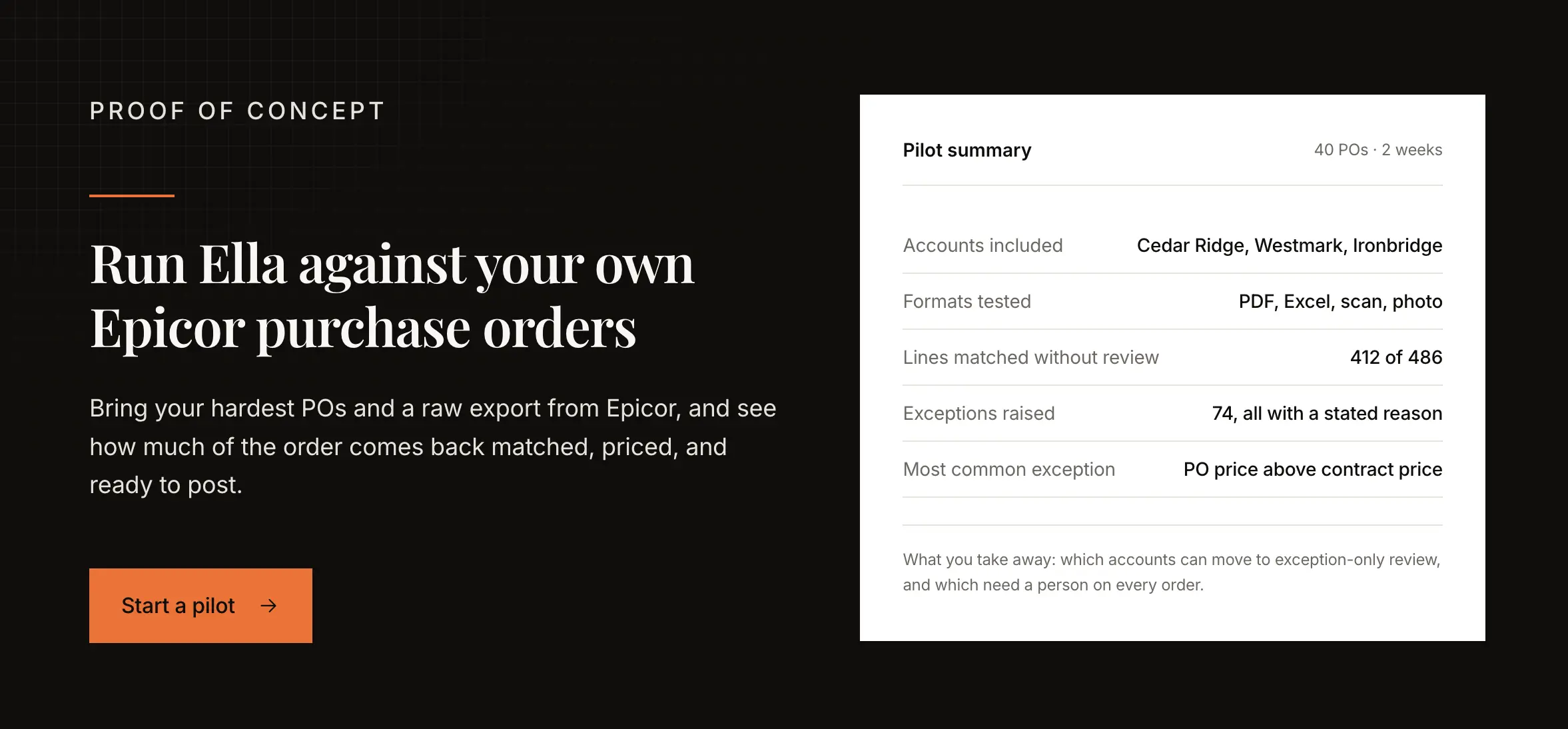
What should a proof of concept on your Epicor data cover?
A proof of concept should use your real Epicor data and real customer orders. Otherwise, you are testing the vendor’s demo environment rather than how the integration will perform in your business.
Check whether your Epicor data is ready
Accuracy depends heavily on what already exists in Epicor. Before starting, review the quality of your part master, product descriptions and attributes, customer part-number cross-references, pricing, ship-to records, and order history.
Any major gaps in this data will affect the quality of the pilot.
Export the Epicor data needed for matching
A typical proof of concept needs:
- product and part master data
- product descriptions and attributes
- customer and ship-to records
- price lists and contract pricing
- customer part-number cross-references
Raw exports are usually enough at this stage. The goal is to test how well the system works with the data you already maintain in Epicor.
Test with your hardest purchase orders
Do not only send clean, predictable POs.
Include high-volume customers, unusual PO formats, scanned or photographed orders, unfamiliar part numbers, unusual units of measure, and orders with project or job-site references.
A useful pilot should show how the integration handles the orders that currently take your team the most time.
Define what a successful pilot looks like
Look at how accurately orders are matched, which exceptions still need review, and whether those exceptions are clearly explained.
You should come out of the pilot knowing which orders can be automated confidently and where manual review will still be needed.
Plan around an Epicor upgrade if needed
If you are already upgrading or migrating Epicor, the proof of concept does not always have to wait until the entire project is finished.
Integration testing can often begin once the required Epicor environment and access are available, allowing the order-entry workflow to be tested alongside the broader ERP rollout.
Why does Ella by WizCommerce work for Epicor order entry automation?
Ella by WizCommerce is an AI order entry and quote automation software built for wholesalers, distributors, and manufacturers. It reads incoming purchase orders and quote requests, matches them against the customer, product, pricing, and inventory data in Epicor, and prepares validated transactions for the ERP.
For teams evaluating the best AI order entry software to integrate with Epicor, the important question is not just whether a tool can read a PO. It is whether it can understand the order, use the data already inside Epicor, handle exceptions, and write the result back into the ERP in a way that fits your existing workflow.
Built for wholesalers, distributors, and manufacturers
Ella is built around the way B2B orders actually behave. Customer-specific part numbers, contract pricing, case packs, minimum order quantities, units of measure, backorders, and customer-specific rules are handled as part of the order workflow rather than treated as exceptions.
That matters because extracting text from a PO is only the first step. The harder part is translating what the customer sent into the customer, item, quantity, price, and order fields Epicor expects.
Intake through the channels customers already use
Ella works with the order channels your customers already use, including PDFs, spreadsheets, email bodies, scanned documents, photographed POs, and faxes converted to email.
It can monitor a shared orders inbox or process emails forwarded to a dedicated address. Your team can also include instructions in the forwarded message when an order needs additional context.
Matching against your Epicor data
Ella matches orders against data synced from Epicor, including customers, ship-to locations, the part master, pricing, customer part-number cross-references, and inventory.
If a customer-specific part number already exists in Epicor, Ella can use that mapping directly. Where no cross-reference exists, it can use product descriptions, attributes, and previous customer order history to help identify the correct item.
Price, inventory, and unit-of-measure checks
Ella checks incoming order details against the data and rules already maintained in Epicor.
PO pricing can be compared with the applicable contract or customer price, while inventory and backorder rules can be checked before the order moves forward. Unit of measure can also be captured as submitted by the customer and passed into Epicor for the ERP to apply its existing conversion logic.
Any discrepancy can be flagged for review rather than silently accepted.
Field-level confidence scores
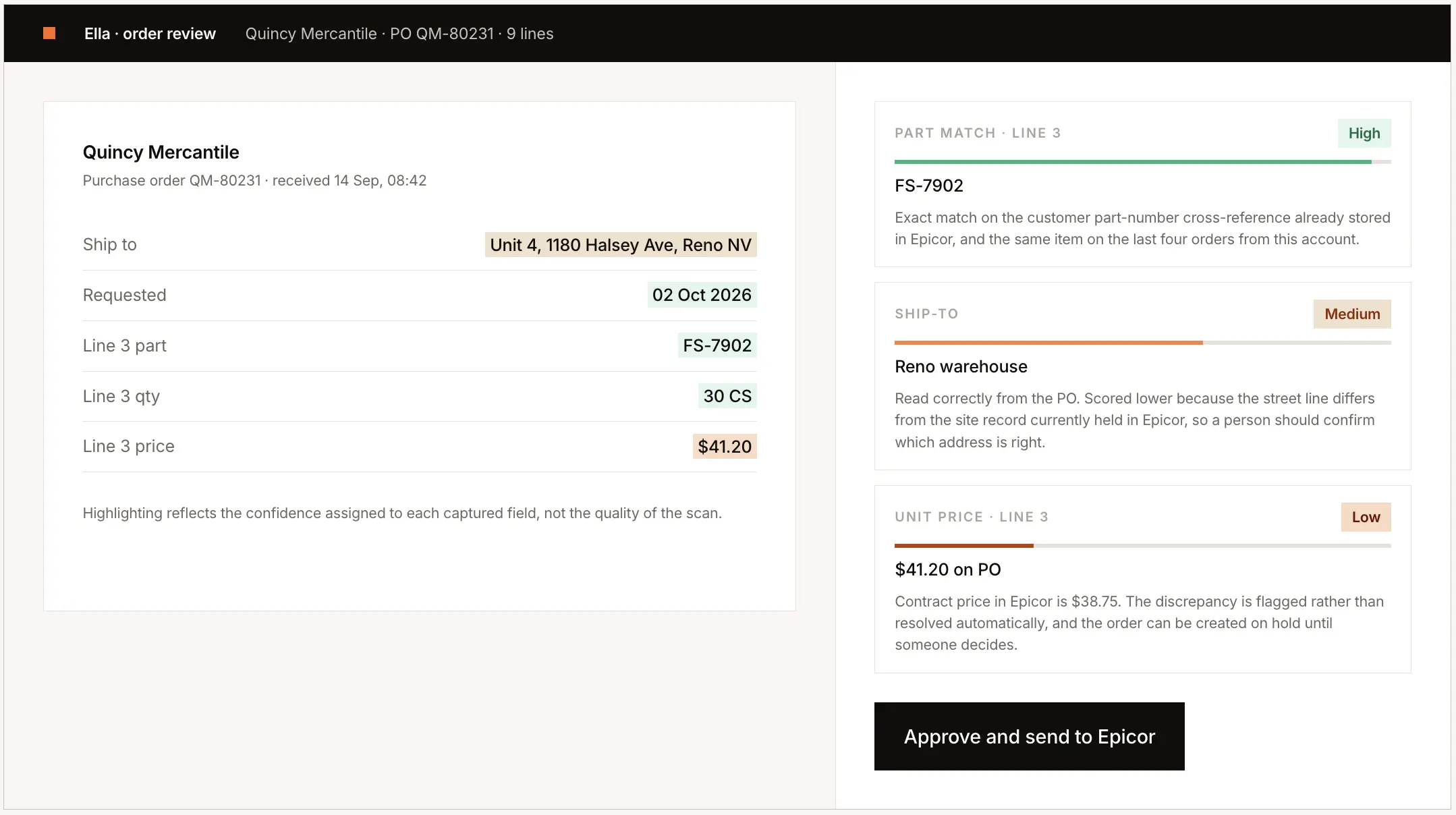
Ella assigns confidence at the field level so reviewers can quickly see which parts of an order may need attention.
A lower confidence score does not always mean the document was read incorrectly. It can also indicate that the extracted value does not closely match the corresponding record in Epicor.
For example, an address may have been captured correctly from the PO but still receive a lower score because it differs from the ship-to address currently stored in Epicor. This helps the reviewer focus on the fields that actually need a decision.
Customer-specific rules in plain English
Ella lets teams define order-processing rules using plain-English instructions rather than code.
These rules can capture account-specific knowledge, such as how a customer refers to certain products, which shipping method should be used, or how a particular type of order should be handled.
Rules can be scoped by the customer so an instruction created for one account does not automatically affect orders from another.
Review and write-back inside Epicor
Ella can write orders into Epicor in the state that fits your workflow, such as posted, held, draft, or unapproved, depending on the Epicor product and configuration.
It can also pass through information that helps the reviewer understand what needs attention, including discrepancy notes, customer part numbers, unit-of-measure values, job-site information, and a link back to the original purchase order.
That allows the review process to stay close to Epicor rather than forcing your team to work from a separate order-entry queue.
Review first, then automate predictable orders
Ella can support different levels of automation depending on the customer and the reliability of the order flow.
Teams can begin by reviewing every order, then move consistently clean orders toward exception-only review or automatic posting. The setting can be applied by customer, allowing predictable accounts to move faster while more complex orders continue to receive human review.
The bottom line
Epicor should remain the system of record. The role of the integration is to remove the manual work that happens before the order reaches it.
The real test is whether incoming purchase orders can be matched against the data already in Epicor, validated correctly, and written back through the right interfaces without forcing your team into a separate workflow.
If that part is designed well, Epicor order entry becomes faster without changing how your customers place orders or how your team works inside the ERP.
FAQs
How does Epicor integrate with AI order entry software?
Epicor integration with AI order entry software typically uses Epicor APIs or supported integration interfaces. The integration syncs the required master data from Epicor, matches incoming purchase orders against those records, validates the order, and then creates the sales order back in Epicor.
Can Epicor work with any AI order entry software?
Not necessarily. The software needs to support your specific Epicor product, version, deployment model, and available API access. Kinetic, Prophet 21, Eclipse, and BisTrack have different integration requirements, so support for one Epicor product does not automatically mean support for another.
Which Epicor products can integrate with AI order entry tools?
Epicor Kinetic, Prophet 21, Eclipse, and BisTrack can support order entry integrations, but the connection method differs across products and versions. Other Epicor products such as iScala and CMS may also support integrations depending on the APIs and interfaces available in the specific environment.
What are the benefits of Epicor integration with AI order entry systems?
The main benefit is reducing the manual work between receiving a customer PO and creating the sales order in Epicor. Orders can be matched against Epicor customer, product, pricing, and inventory data before they are written into the ERP, helping reduce re-keying, catch exceptions earlier, and increase order-processing capacity.
Do I need a specific Epicor API package?
It depends on the Epicor product and the operations the integration needs to perform. Reading master data and creating sales orders may require different API access or licensing, so confirm that your Epicor environment supports both before implementation begins.
Is there support for Epicor integration with AI order entry tools?
Yes, depending on the Epicor environment. Integration may be handled through direct APIs, prebuilt connectors, middleware, or existing file-based workflows. The right approach depends on your Epicor product, version, licensing, and whether the ERP is cloud-based or on-premise.
Are there any limitations to Epicor AI order entry integration?
Yes. Matching accuracy depends partly on the quality of the customer, product, pricing, and cross-reference data stored in Epicor. New items that do not yet exist in the ERP may still require manual setup, while high-volume customers already using EDI are often better left on that existing workflow.
Is Epicor integration with AI order entry software secure?
It can be, provided access is properly scoped. Your IT team should review what Epicor data is being read, what write permissions are granted, where data is hosted, document-retention policies, authentication and role-based access, relevant security certifications, and sandbox testing before production.
What data do I need in Epicor before automating order entry?
At minimum, you should have reliable customer and ship-to records, a usable part master, current pricing, and customer part-number cross-references where applicable. Product descriptions, attributes, and historical order data can also improve matching when an incoming PO does not contain an exact Epicor part number.